AI based search
Excire Search 2 is an AI-based plug-in for Lightroom Classic. Excire has also a stand-alone version. This blog post is about the Lightroom Classic plug-in. I will write a blog post about the stand-alone software Excire Photo once I have tested it properly.
The number of images can be quite huge. At the moment my catalog has a little over 245.000 images. Then there are the additional images in DVDs that I have not imported into Lightroom Classic. Since I have added keywords only to some of the images there is a lot of images without any keywords. Finding them might be a bit hard. That’s where Excire Search 2 comes in handy as you will see.
I usually tend to name the folder with the date the images were made and the subject matter, location, and so on. I can find my images quite well.
Disclaimer: Excire contacted me and asked if I want to test it? Of course, I wanted. They provided me the license key for free. I promised in exchange to write a blog post about the plug-in and make a few videos about it. They did not tell me what to say about so all the opinions are mine. Some of the links in this post might be affiliate links.
Initializing the Catalog

Once you have installed the plug-in Excire Search 2 needs to initialize the Lightroom Catalog. That might take some time if you have a lot images. My catalog of over 254.000 images took several hours. Sorry that I cannot say how many because I let it do its thing during the night. I was asleep when it was finished. The Excire webpage says that it takes about an hour per 10.000 images. In my case, it was a lot faster. It was probably because I have Smart Previews and it used those. Smart Previews is handy in many ways.
After everything is initialized the plug-in is ready for use. It can be found from Library > Plug-In extras.
Search Options
Excire Search 2 can find your image in many different ways. The great thing about it is that its AI can find images without keywords. You can use the keyword option and it is not what you think. Choosing Abandoned Place for example it can find all the images that have an abandoned place in the photograph. You do not need to have any keywords. The AI can recognize the subject in the photo. In my case, it found 777 images that are taken in an abandoned place.
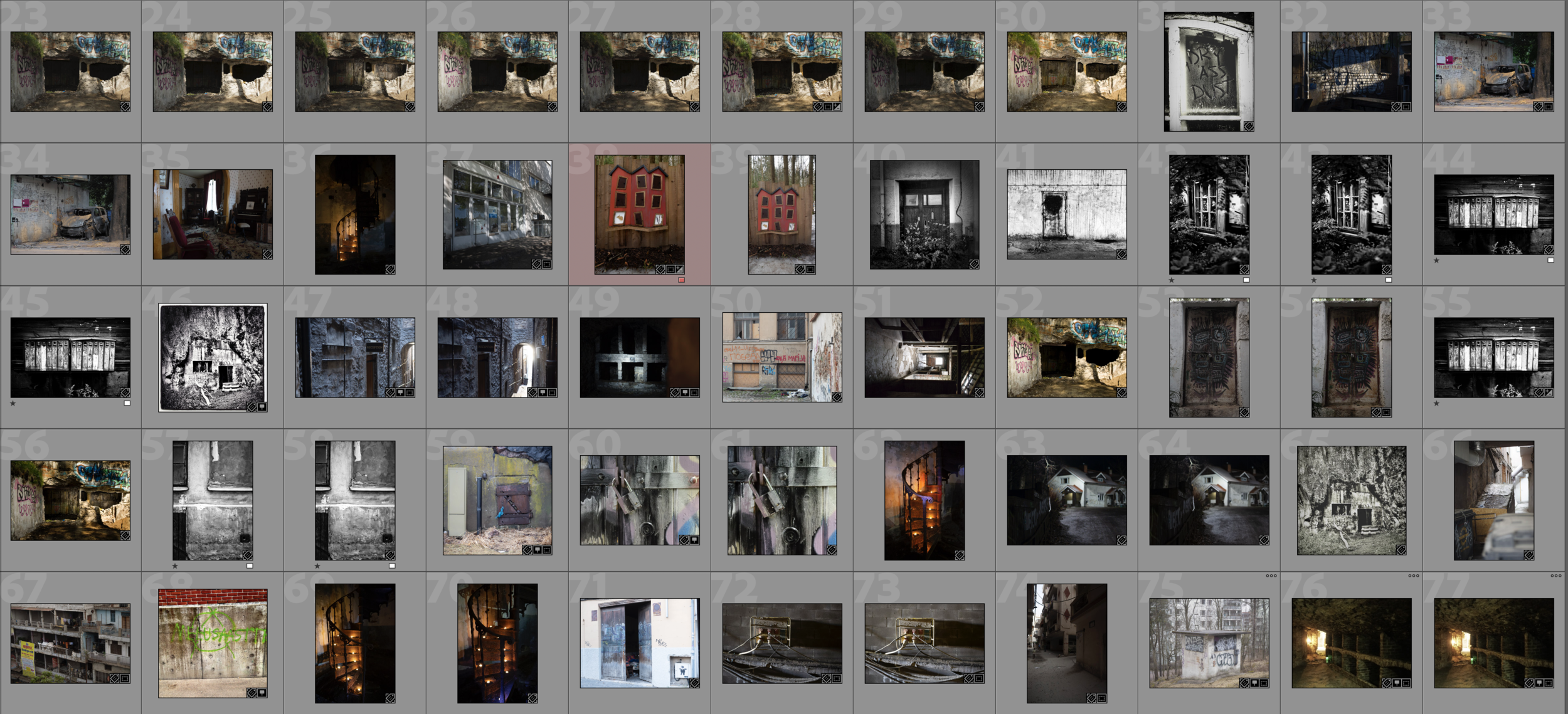
Of course, the results are not perfect but as you see from this screenshot above the results are pretty amazing.
There are some settings that you can tweak in search. The number of images it will show is one. I used the default 100. I have not tested it yet that much that I can say what is the optimal amount here. Most likely it depends on your needs.
Search by an Example Photo
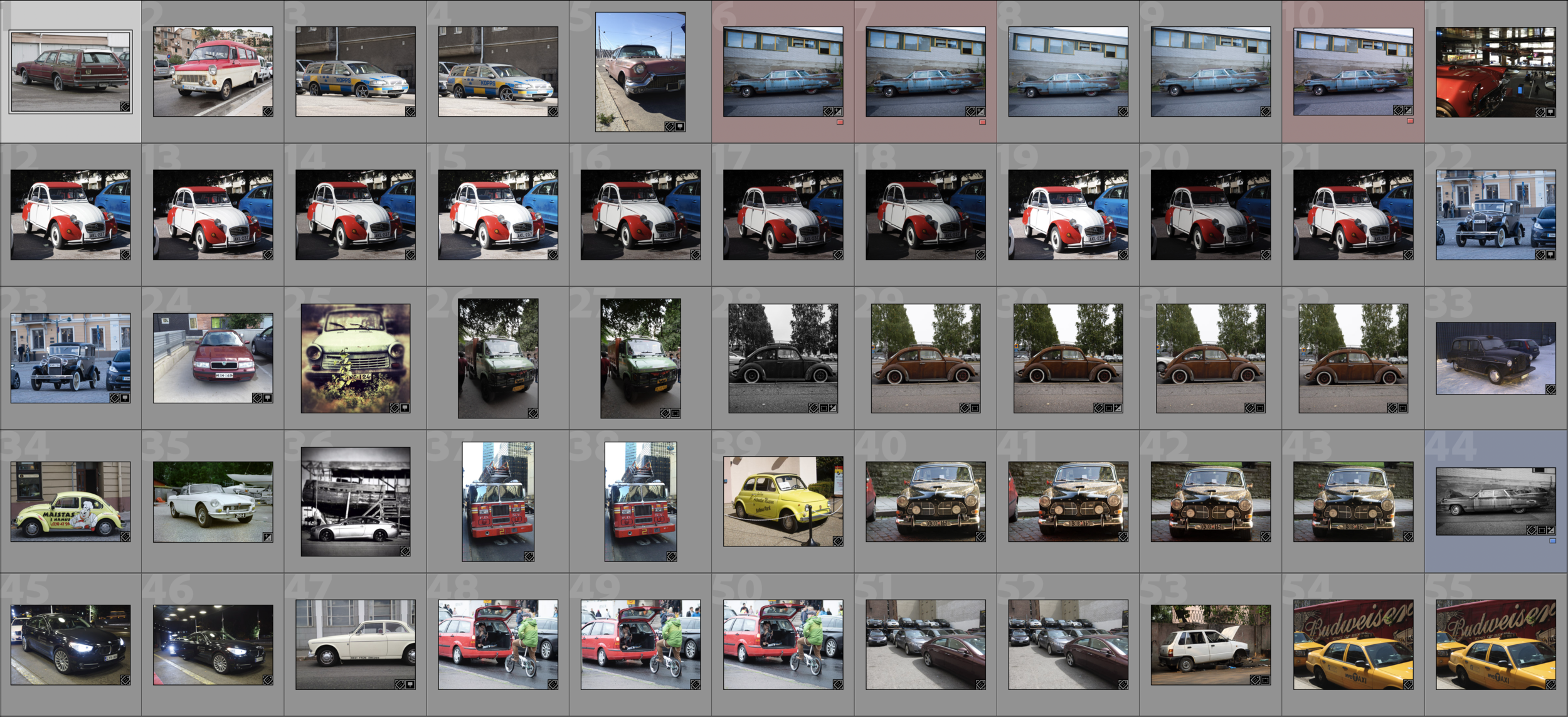
One interesting way to find photos is to Search by Example Photo. You just select a photo and let the Excire Search 2 do its magic. There are two search criteria, Photo content, and color. Then you can also adjust the strength of the search. That most likely means that how close you want the search results to be the original photo. It will show the photos as a collection.
In the example below I used the photo of a beat-up Chevy. The result shows me images of cars.
Search by Faces
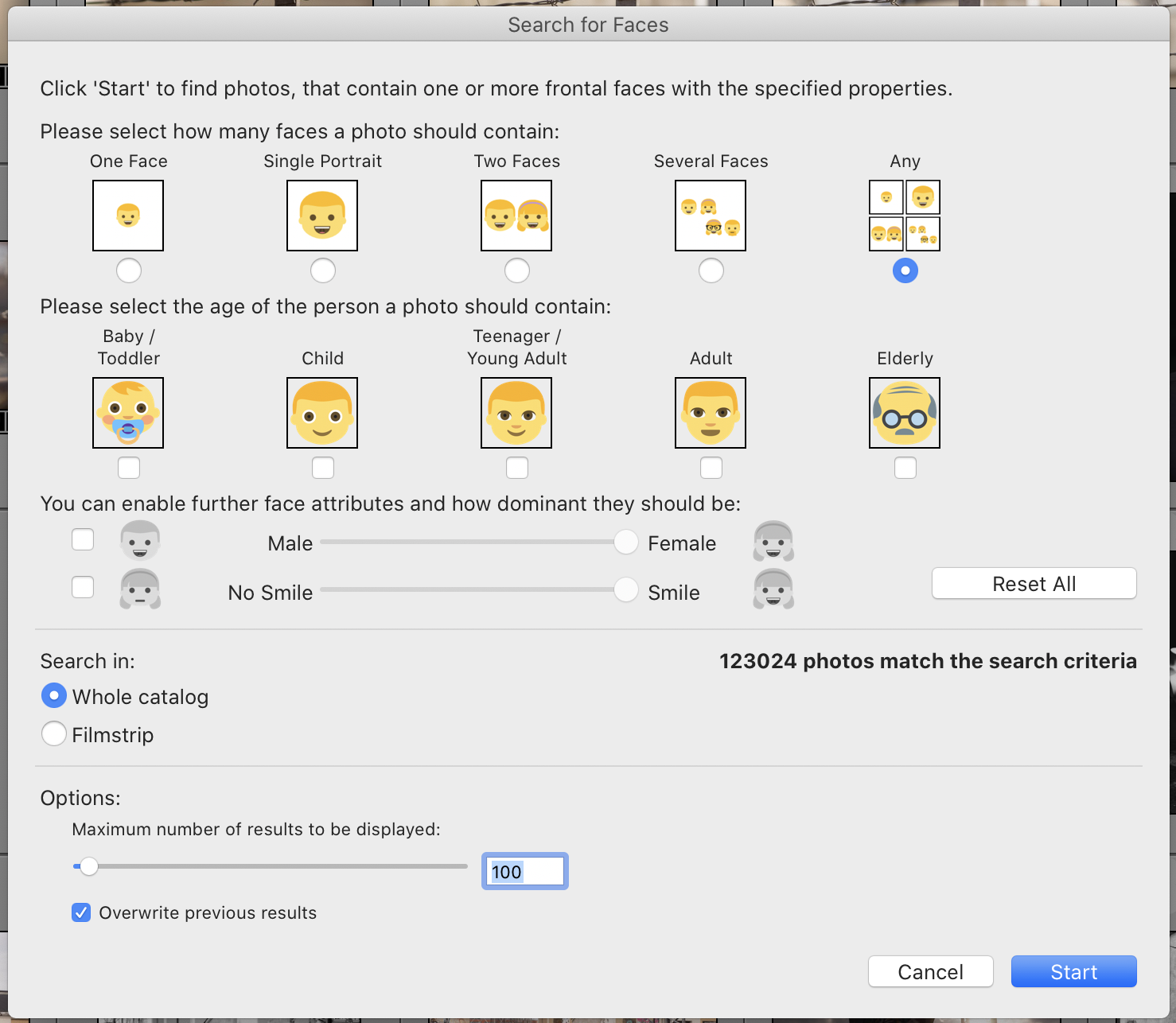
One more example, search by faces. This is very interesting. 123.024 images out of that roughly 254.000 are images that have faces in them. After all, I have photographed a lot of people. There are a lot of options in this search: number of Faces, gender, age, and so on. It is remarkable how well this works.
Fast Search!
The initialization takes some time, but the search is really fast. It only takes a few seconds to find similar images. It is blazing fast!
Try it yourself!
If you want to try it yourself I do have an Affiliate link. Just click the banner below and you can buy Excire Search 2, download a trial version and read some more. I also encourage you to test it. I think this is the best thing that has happend in Image Search for a long time. Excire Search 2 is excellent.