




Peter Forsgård

photographer

  • Luminar Neo, again a new software from Skylum.

    Screenshot 2021-09-12 at 8.08.12.png

    Skylum announced their new software on the 9th of September called Luminar Neo. What is going on? Luminar AI came on the market last December. Why a new software again? Will it replace Luminar AI?

    Why was Luminar Neo made?

    Luminar Neo is built on a whole new image engine. It will mean that it will be faster than Luminar AI that is based on an old image engine. Luminar Neo will also have new features that are not possible in Luminar AI.

    Most likely Luminar Neo will be faster. The old image engine needed to calculate again all the previous edits on the image before it could apply the new one. When having a lot of edits the process will slow down as you go forward with your edits. The new engine does not have to do this. Luminar Neo is also a modular software which I who know nothing about coding have learned that it is the new way to do software.

    Is Neo compatible with Luminar AI catalogs?

    Short and straight answer: No. It is a pity and will make a lot of us a bit annoyed. The reason is that new image engine.

    What is new in Luminar Neo?

    It will have all the same AI tools that Luminar AI had and a lot more. Skylum said that it has 30 Ai tools. Here are some of the new tools that Luminar Neo has.
    Screenshot 2021-09-12 at 8.08.27.png

    Mask AI

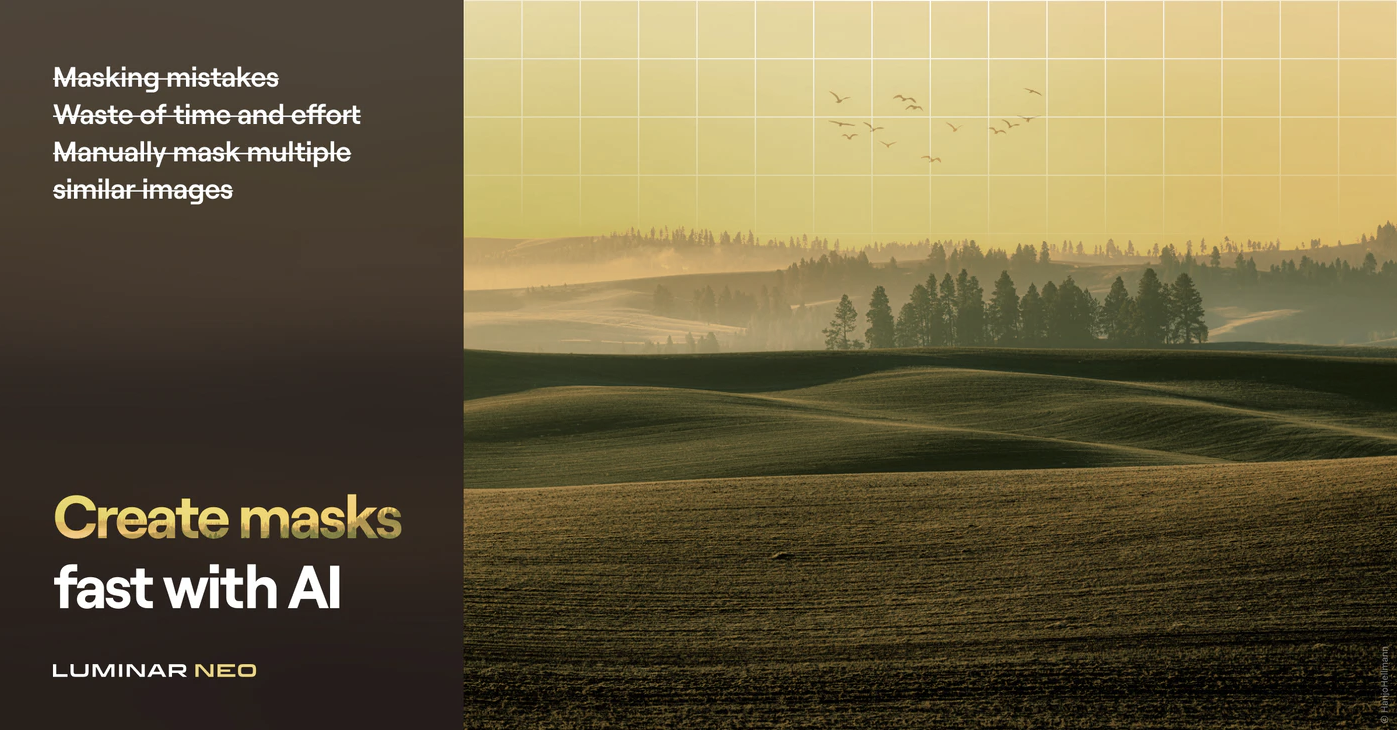
    Masking is one of the most boring things in image editing. Luminar Neo will do that automatically for you. Mask AI is most likely a time saver for many. Of course, it has to work perfectly in order for it to be useful. Fixing bad masks is almost the same as making the mask by hand.

    Screenshot 2021-09-12 at 8.08.36.png

    Layers

    Layers are useful. Luminar AI did not have them. It was based on a different method. I am personally quite used to using layers. It is an easy and good way of adding adjustments. The strength can be adjusted in many ways. I think having layers back is a good move.
    Screenshot 2021-09-12 at 8.08.46.png

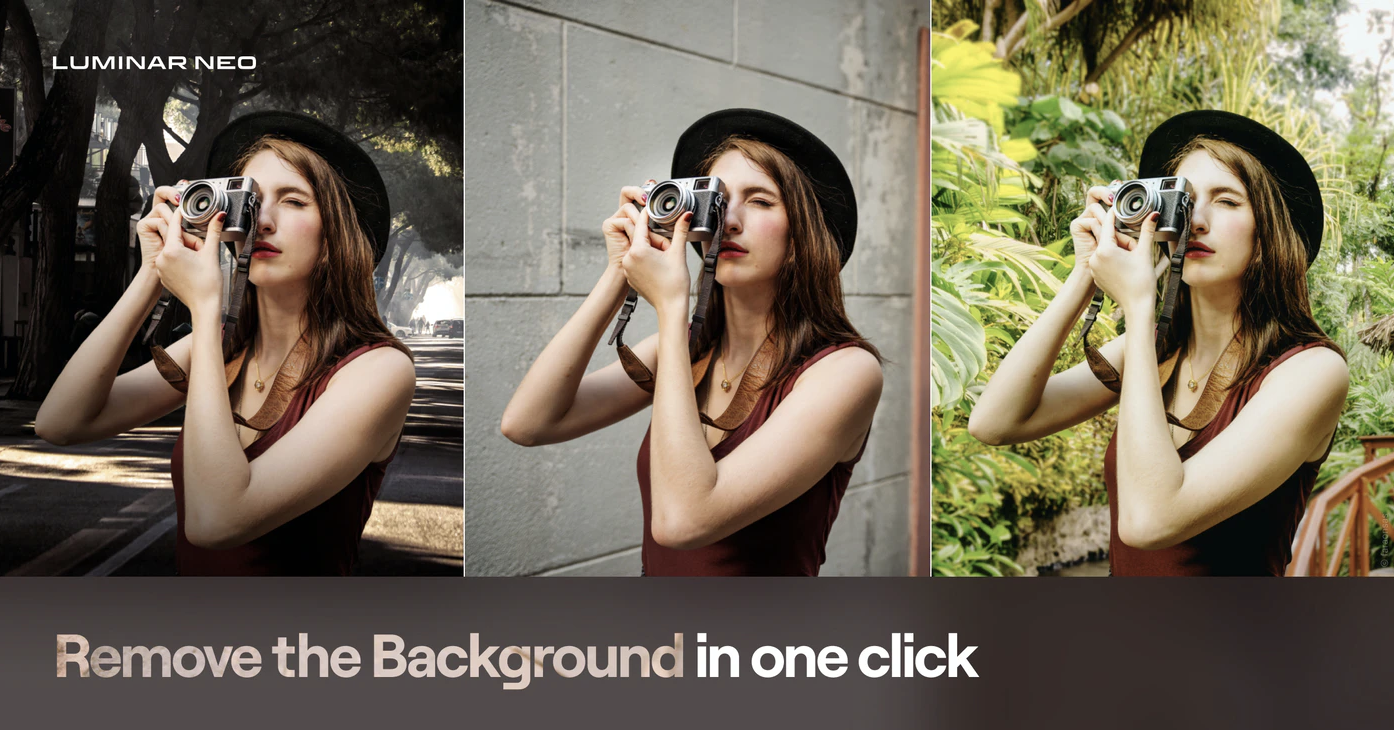
    Background Remove

    If this works perfectly it is a quite powerful tool. It is nothing new. Adobe Photoshop and many other image editing software have a similar tool. Luminar Neo has to be better. This tool is very useful for product photographers and for those who make composite images. It will most likely make the workflow faster.
    Screenshot 2021-09-12 at 8.08.55.png

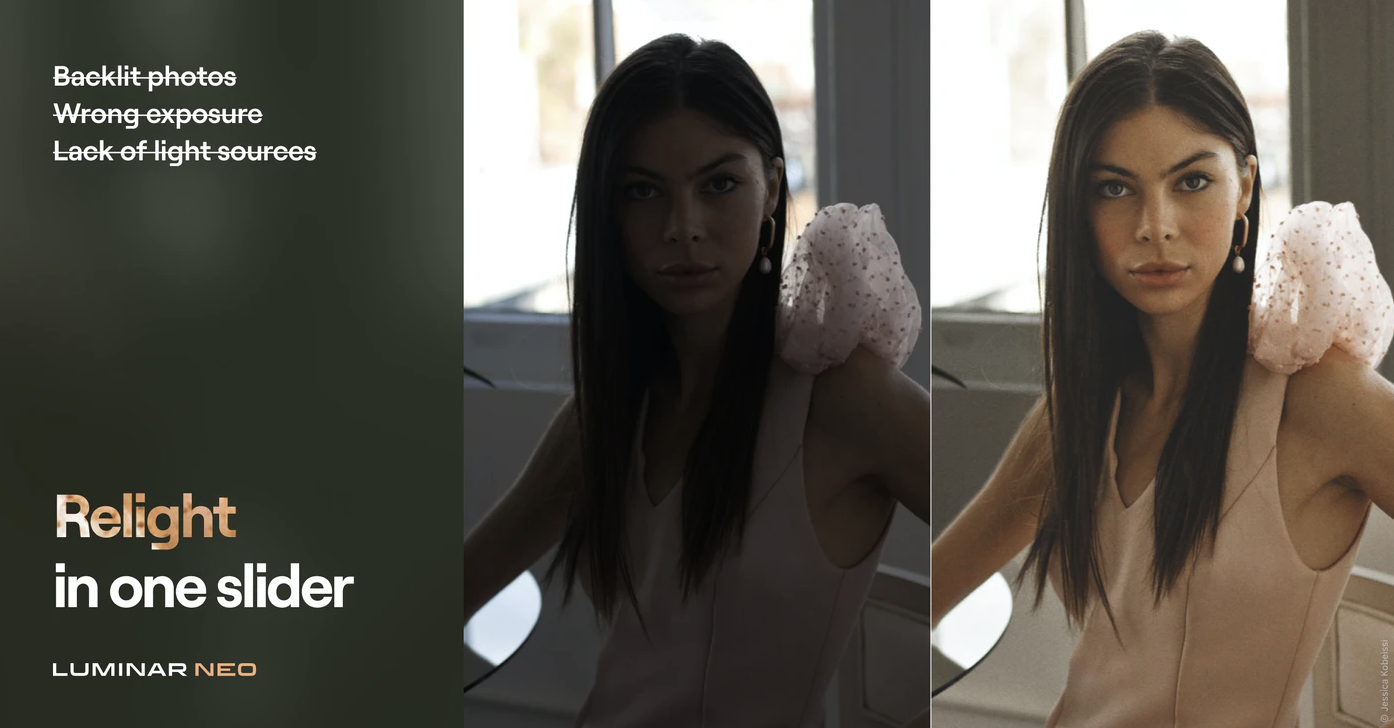
    Relight AI

    Relight AI is an interesting tool for changing the light in an image. The example photo is just one part of it, fixing poor photographs. If it is also good for actually relighting a scene then this could be something bigger than just a fix for mistakes that the photographer made. That remains to be seen.

    A great deal for existing Skylum software users.

    Skylum offers a great for existing Skylum software users. An early bird price is only 34€. (valid until 19th of September). There is also a 30-day money-back guarantee that starts when the software is available. Not a bad deal. in spite of the disappointment that the fast pace of introducing new software Skylum has Luminar Neo is interesting software. I will definitely try it.

    This is a good deal, but I think they should have given the Luminar Neo to all Luminar AI users for free. That would have been a really great deal. It would have also made people a lot happier. Now many of us feel a bit fooled.

    👉 Click this link takes you to that deal: Luminar Neo deal. (valid until October 17th, 2021)

    👉 New users: Luminar Neo deal for new users. (valid until October 17th, 2021)

    My video about Luminar Neo.


  • Why Excire Search 2 is a Great tool for searching images in Lightroom Classic.

    Excire Search 2: KI-unterstützte Bildverwaltung für Lightroom

    AI based search

    Excire Search 2 is an AI-based plug-in for Lightroom Classic. Excire has also a stand-alone version. This blog post is about the Lightroom Classic plug-in. I will write a blog post about the stand-alone software Excire Photo once I have tested it properly.

    The number of images can be quite huge. At the moment my catalog has a little over 245.000 images. Then there are the additional images in DVDs that I have not imported into Lightroom Classic. Since I have added keywords only to some of the images there is a lot of images without any keywords. Finding them might be a bit hard. That’s where Excire Search 2 comes in handy as you will see.

    I usually tend to name the folder with the date the images were made and the subject matter, location, and so on. I can find my images quite well.

    Disclaimer: Excire contacted me and asked if I want to test it? Of course, I wanted. They provided me the license key for free. I promised in exchange to write a blog post about the plug-in and make a few videos about it. They did not tell me what to say about so all the opinions are mine. Some of the links in this post might be affiliate links.

    Initializing the Catalog

    Screenshot 2021-09-03 at 19.51.36.png

    Once you have installed the plug-in Excire Search 2 needs to initialize the Lightroom Catalog. That might take some time if you have a lot images. My catalog of over 254.000 images took several hours. Sorry that I cannot say how many because I let it do its thing during the night. I was asleep when it was finished. The Excire webpage says that it takes about an hour per 10.000 images. In my case, it was a lot faster. It was probably because I have Smart Previews and it used those. Smart Previews is handy in many ways.

    After everything is initialized the plug-in is ready for use. It can be found from Library > Plug-In extras.

    Search Options

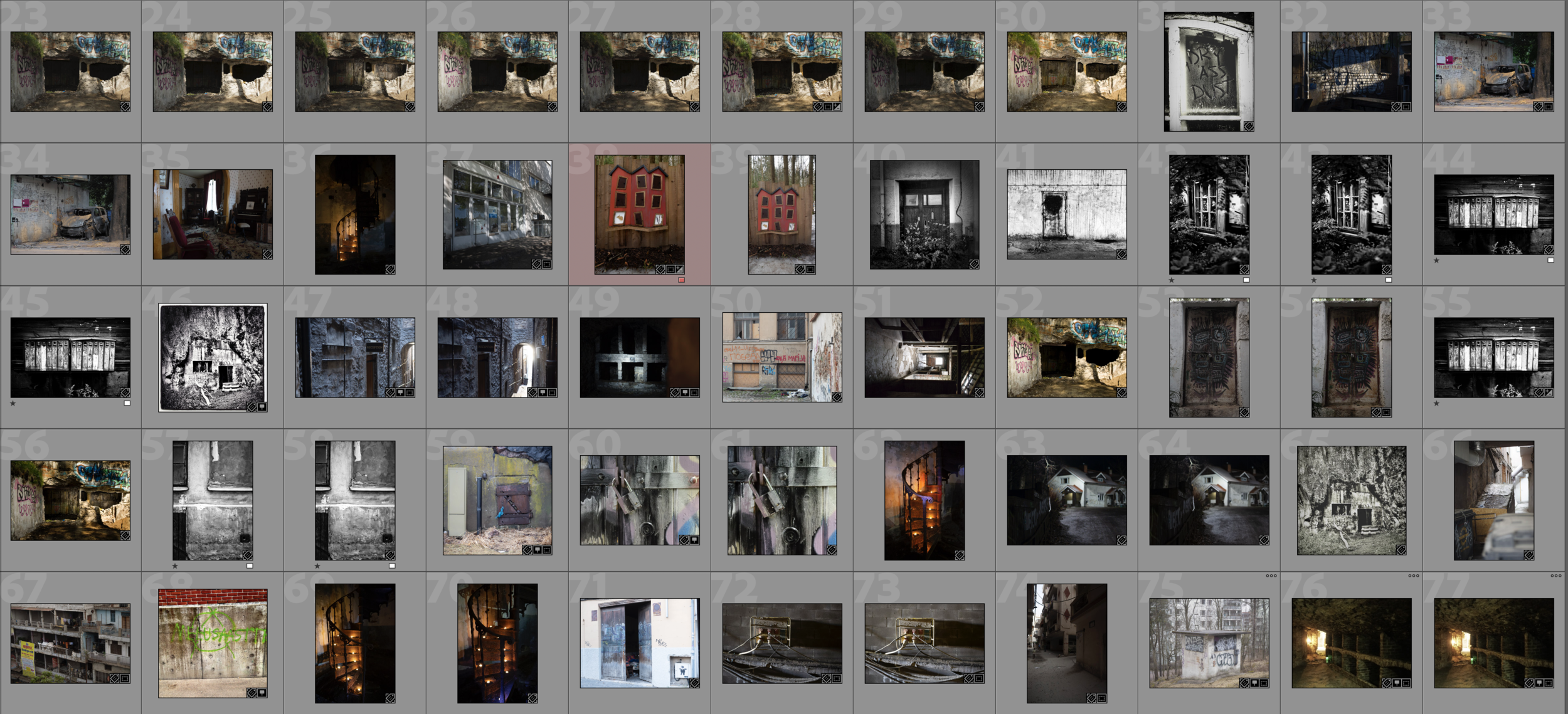
    Excire Search 2 can find your image in many different ways. The great thing about it is that its AI can find images without keywords. You can use the keyword option and it is not what you think. Choosing Abandoned Place for example it can find all the images that have an abandoned place in the photograph. You do not need to have any keywords. The AI can recognize the subject in the photo. In my case, it found 777 images that are taken in an abandoned place.

    A portion of the results.
    A portion of the results.

    Of course, the results are not perfect but as you see from this screenshot above the results are pretty amazing.

    There are some settings that you can tweak in search. The number of images it will show is one. I used the default 100. I have not tested it yet that much that I can say what is the optimal amount here. Most likely it depends on your needs.

    Search by an Example Photo

    One interesting way to find photos is to Search by Example Photo. You just select a photo and let the Excire Search 2 do its magic. There are two search criteria, Photo content, and color. Then you can also adjust the strength of the search. That most likely means that how close you want the search results to be the original photo. It will show the photos as a collection.

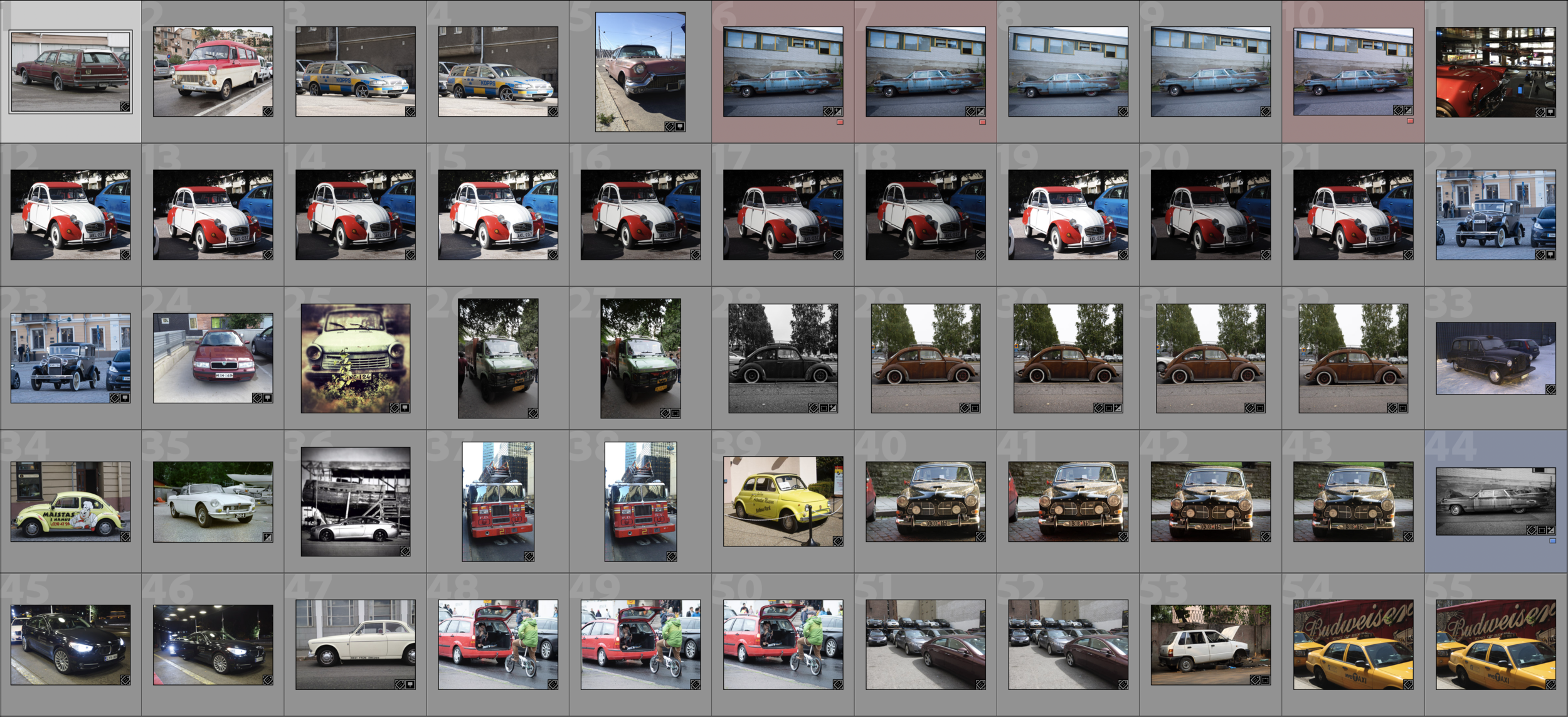
    In the example below I used the photo of a beat-up Chevy. The result shows me images of cars.

    A portion of the results.
    A portion of the results.

    Search by Faces

    Screenshot 2021-09-05 at 8.59.01.png

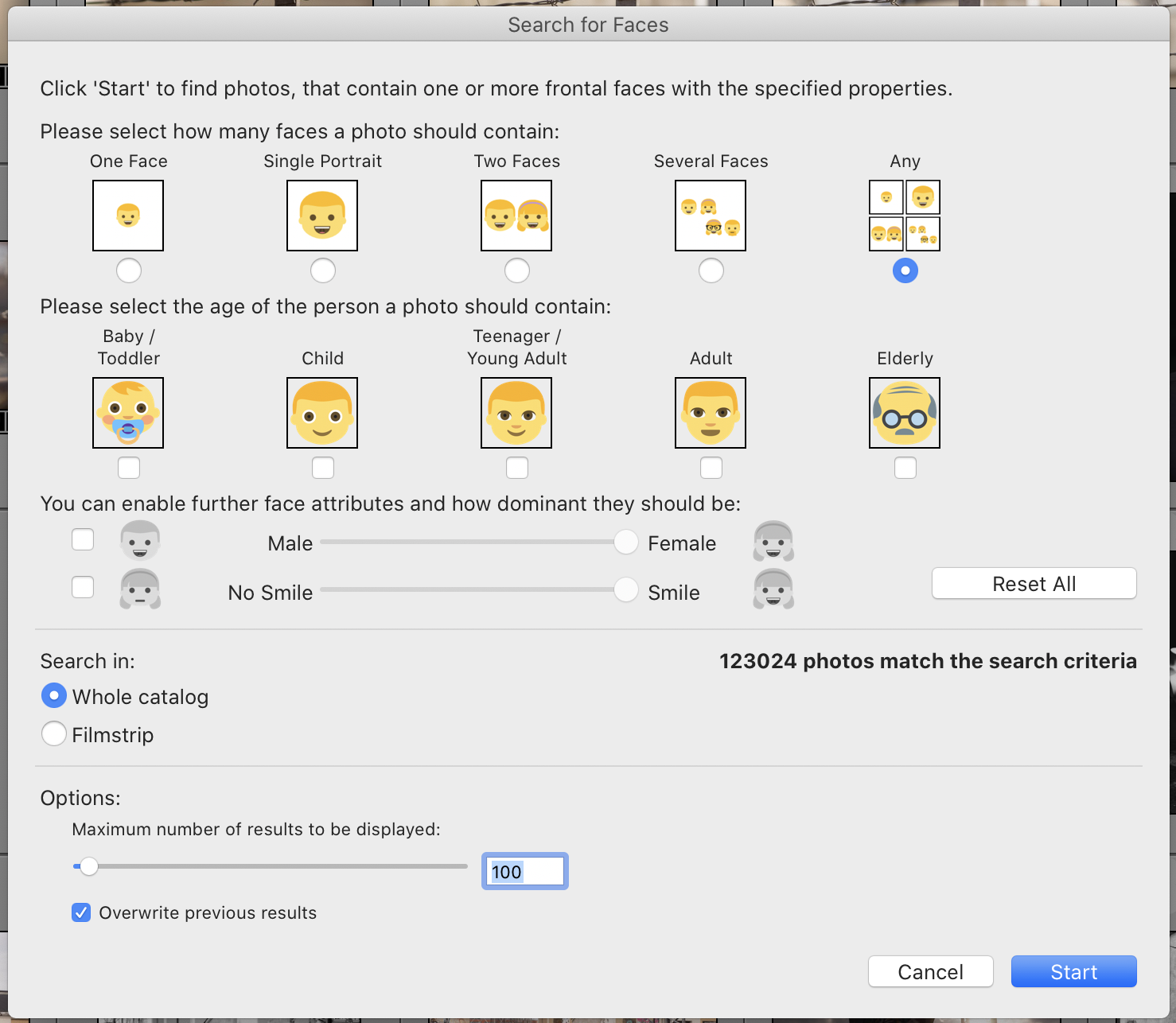
    One more example, search by faces. This is very interesting. 123.024 images out of that roughly 254.000 are images that have faces in them. After all, I have photographed a lot of people. There are a lot of options in this search: number of Faces, gender, age, and so on. It is remarkable how well this works.

    Fast Search!

    The initialization takes some time, but the search is really fast. It only takes a few seconds to find similar images. It is blazing fast!

    Try it yourself!

    If you want to try it yourself I do have an Affiliate link. Just click the banner below and you can buy Excire Search 2, download a trial version and read some more. I also encourage you to test it. I think this is the best thing that has happend in Image Search for a long time. Excire Search 2 is excellent.

    Excire Search 2: KI-unterstützte Bildverwaltung für Lightroom

  • Question YOU NEED TO ASK Before Clicking The Shutter!

    Commonly, we rush to our images. What I mean is that we make images without thinking about the process of making the image.

    aloituskuva.jpg

    In my 🎥 latest video, I go through things you need to ask before clicking the shutter. It is quite a lot. The video was inspired by a blog post on the B&H blog. The blog post was: 30 Questions You Should Ask Before You Take a Photograph. It was a very inspiring blog post.

    There is a lot to think about before clicking the shutter. It starts with the most obvious question: What is the subject?

    Unfortunately, it is not always clear what was photographed. There are a lot of images that have no subject. It’s just because the photographer has not thought about it.

    The second thing is that the image must be photographed to make the subject obvious. You can do some things when photographing to ensure the subject is obvious.

    Those things are Light, Composition, and controlling the depth of field—more about these in my latest video.

    B&H blog post had 30 questions, but it can be reduced to 3 things. What, Why, and How. Those three questions are important. Do not make the image if you cannot answer those three questions. Most likely, it won’t be exciting.

    Always think about what to photograph, why you photograph it, and how to photograph it so that the subject is obvious. That will make your images a lot more interesting. You will be better.