
Category: english

  • Some thoughts on my new Olympus LS-100 audio recorder.

    I have been shooting videos for clients since 2008. That was the year when DSLR video revolution started. The biggest learning curve has been the audio. As we all know crappy picture might be ok, but no one will listen to bad audio. I have been a pro photographer and a free lance for 30 years. Audio has not been one of my expertise. But with reading, watching YouTube I have managed to learn how to record a good audio for the videos I shoot.

    I have always used an external recorder since the audio on small cameras is not so good. The camera audio is great for syncing.
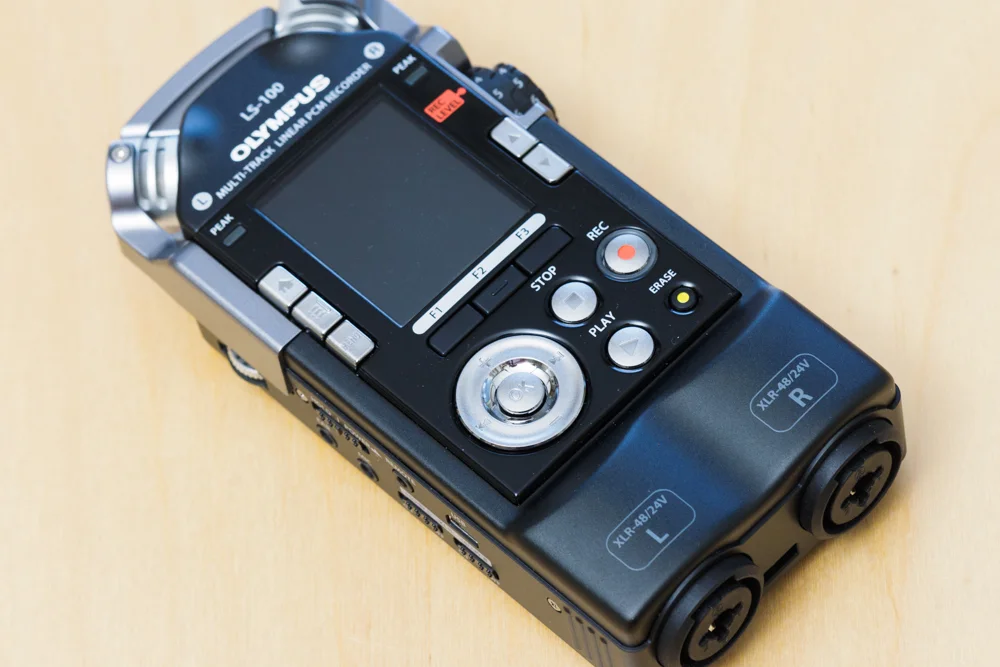
    Olympus LS-100 Multi-Track PCM Recorder
    Olympus LS-100 Multi-Track PCM Recorder

    A week ago I upgraded my external recorder to Olympus LS-100. Its a multitrack recorder. Its a bit over kill for me. I mostly record interviews and speech. But its always good to have the best possible solution and I think that LS-100 is just that for me.
    LS100_002.jpeg

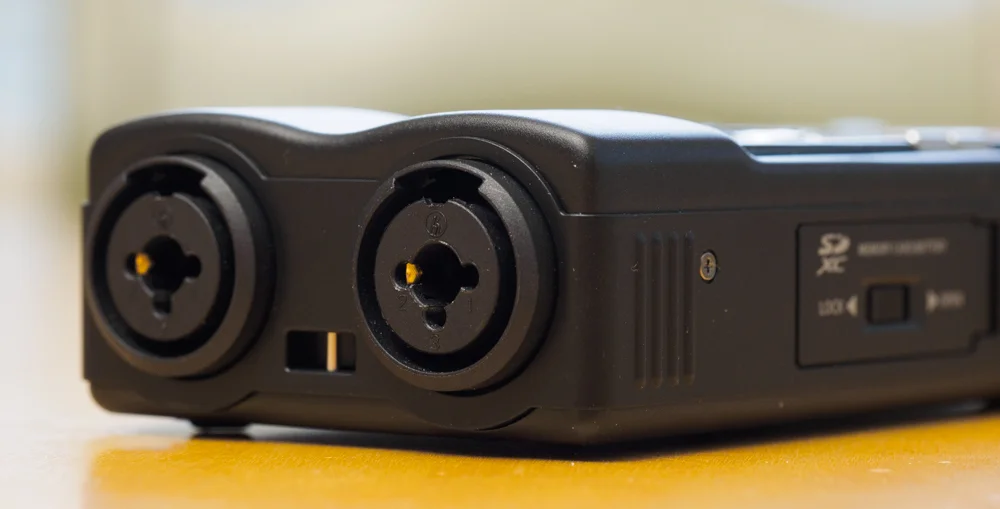
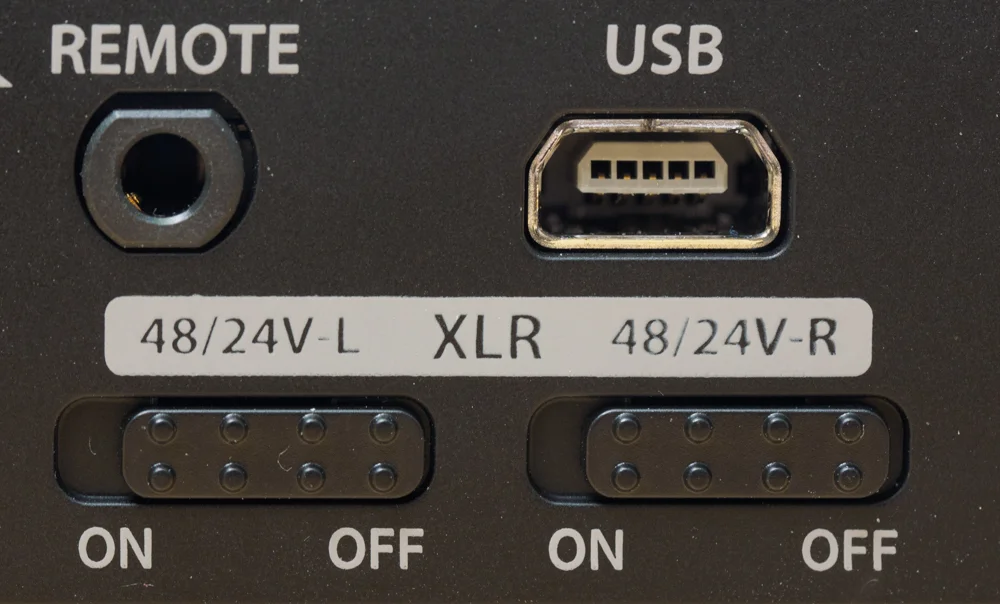
    LS-100 has two XLR-inputs with phantom power. Phantom power can be switched off. Both inputs can be adjusted independly. Thats great for location interviews. One input is for the lav mic and the other for ambient sound mic. Top of that I will be using one mic that is connected to the camera for reference sound. That audio is used for audio sync.
    LS100_003.jpeg

    LS-100 has also an input for 3,5mm plug microphones. It also has two internal mics.

    LS-100 has a 4GB internal memory. That is very handy. Its a good for saving the situation if for some reason one forgets SD-cards behind. Yes, that has happend to me once. The recording media can be chosen from the menu. It would be great if there was an option to use both recording medias at the same time. There would always be a back up if something went wrong with SD-card.

    The recorder feels very good and its well build. In the back there is also a standard tripod mount screw, so the LS-100 can be easily mounted on a rig. It uses a battery, but can be powered with the AC using the USB port
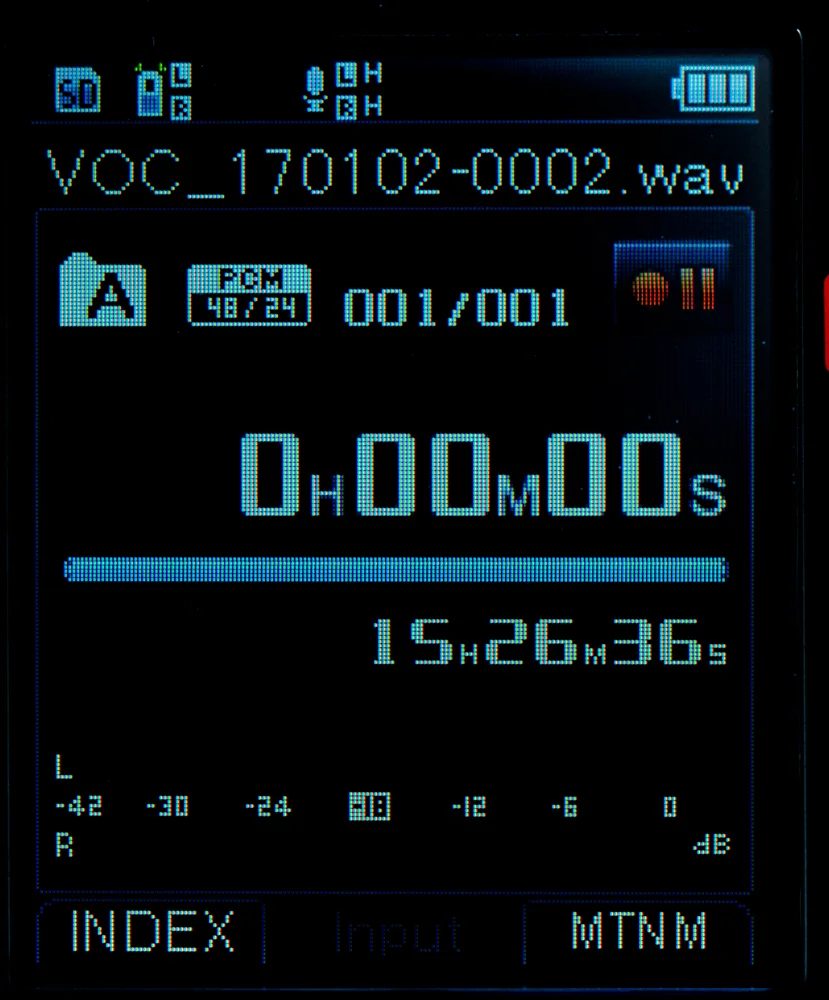
    LS-100 has a color LCD.
    LS-100 has a color LCD.

    Technical details can be found here. I will blog more later about LS-100 after I have used it more.

    Disclamer

    I am Olympus European Visionary and my native language is Finnish.
  • Exposure to the right with Olympus OMD

    Exposure to the right has always been important in digital photography. Thats the best way to record the most information camera can capture. Olympus cameras, OMDs and most Pen-cameras, can be configured so that your exposure is perfect everytime. 

    I made a little tutorial video on how to set up the menus so for the best practice to get perfect exposired. This method was firsr discovered by a finnish photographer Pekka Potka. His blog post about it is no longer available so I made a new one.

    The steps to set up your camera:

    1. Shooting menu 1 > the triange (4th from top) > raw 

    2. Shooting menu 1 > Picture Mode > contrast -2, saturation -2

    3. Custom Menu D > Info settings > info >Highlight & Shadow: On (Histogram: Off) 

    4. Custom Menu D > Histogram Settings > Highlight 254-245 and Shadow 1-8

    5. Custom menu D > LiveBoost: Off

    6. Custom Menu G > Color Space: AdobeRGB

    7. Custom Menu G > AutoWB > Keep Warm Color: Off

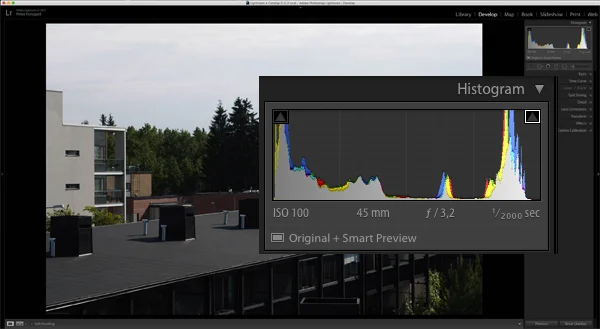
    The screen shot from Lightroom shows the histogram of the image that was shown in the video:

    exposure.jpeg

    As you can see the histogram is almost perfect for and the exposure is correct.

    Be sure to watch the video for some more info. Remember to subscibe my YouTube-channel.

    Disclamer:

    I am an Olympus European Visionary and only look into a mirror at home before going out.

  • About my new workflow with Adobe Lightroom CC

    I have been using Lightroom since the first version. It was a great improvement in my workflow back then. The workflow haven’t really changed since even the software itself has gotten a lot of improvements over the years.

    Adobe introduced Lightroom mobile a while ago, but it really got nice when Lightroom CC came out. Lightroom CC is part of Adobe CC plan. Its also available with the Photography Plan which also includes Photoshop CC.

    Last night I did some head shots for a young film director. After the shoot we went to a bar to have some pizza and yes a few beers… While waiting for the food and enjoying the fine products from the local micro brewery, I uploaded the photos to Lightroom with the web browser. You can access your Lightroom online collections by browsing to lightroom.adobe.com and logging in to your Adobe account. There is a possibility to make a new collection and upload your photos via browser. 

    After the photos were uploaded, the model was able to pick photos by flagging her favorites. Whats really nice about this workflow is that when I got back to my office, all the photos had been uploaded to my Lightroom CC database in my desktop. And whats important, the picks that she made are there.

    This have possible before, but that would have required to have the photos in an external drive and later merge the two databases. I think this new way of taking advantages of the Adobe Cloud is much nicer and less hassle.  

    It speeds up the workflow a lot. I do not have upload them anymore and wait for the client to pick their favorites. It was all ready done when I came back to the office.