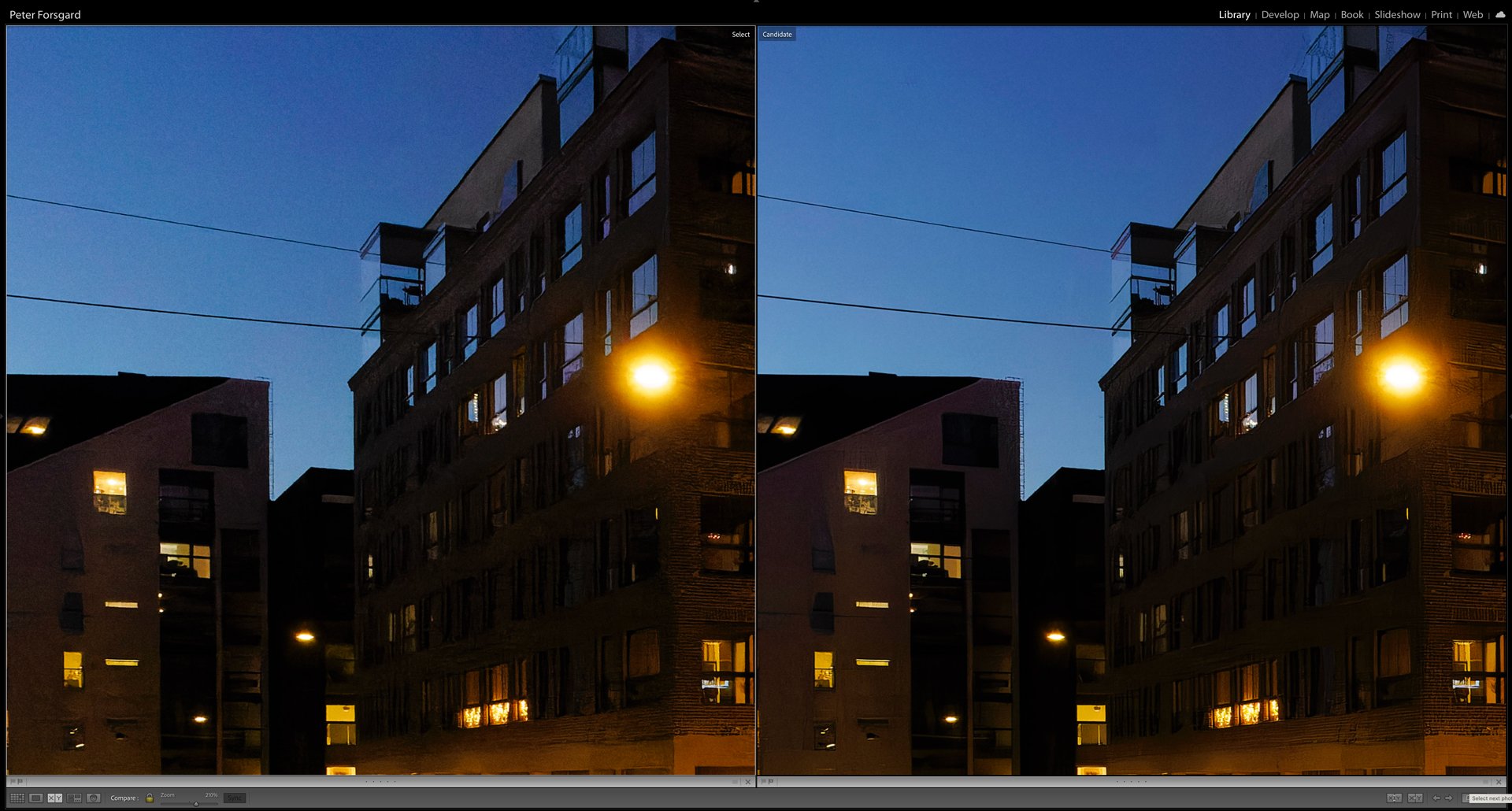
Lightroom Classic has had a mask tool for a little while. It just got a lot better in the new update last fall.
Two significant updates in Lightroom Classic version 12 are the Content-Aware Remove tool and portrait-masks.
Portrait masks
Portrait masks make it so much easier to edit portraits. The new portrait mask can separate skin, eyes, lips, hair, etc. With just a few clicks, you can make the masks.
Masks are important. Editing different parts of the image individually separate the excellent from the rest.
Stating the skin from the rest of the face quickly helps to smoothen the skin.
There are a few minor annoying things. The masks are named Mask 1, Mask 2, etc. Of course, you can rename the masks, but that takes time. It is not the most convenient workflow.
To learn more about the new Content-Aware Remove tool and masks, watch my 👉 video about Lightroom’s update.
Free presets!
My free portrait preset for Lightroom Classic will help. You must click only once, and the portrait masks are made and correctly named. Watch my video about it and see how easy it is. The preset only makes the masks and renames them. No edits are made, and you can start editing yourself immediately.
I have also added a few presets for landscapes and cityscapes. Those preset make masks for the sky, foreground, and subject. Just one click, and you are good to go. No edits are made.
Presets for sale!
I have also presets for sale. These presets make even more separation in portraits. It will also mask the whole person and the background. It will also have a mask that combines face and body skin. You can adjust the skin but also have the face and body skin on separate masks. Splitting the person into separate masks and naming them with a mouse click will make your editing much faster.
There is also a preset that makes slight edits. These smoothen skin, whiten teeth, etc. These are good starting points. The changes are very subtle.
Bonus preset!
As a bonus preset, I have included a preset that can be used when you are importing your images. It is meant for images that have been exposed to the right. If you use ETTR, this preset will make your edit faster. The basic edits have already been done to exposure. The basic import preset will lower the exposure and highlight slightly. The preset will also add some contrast.
Presets are starting points.
Presets are not meant to be the final edit. They are just starting points for you to begin editing faster.
How to get the presets?
Go to this page and learn what the masks do. There are links