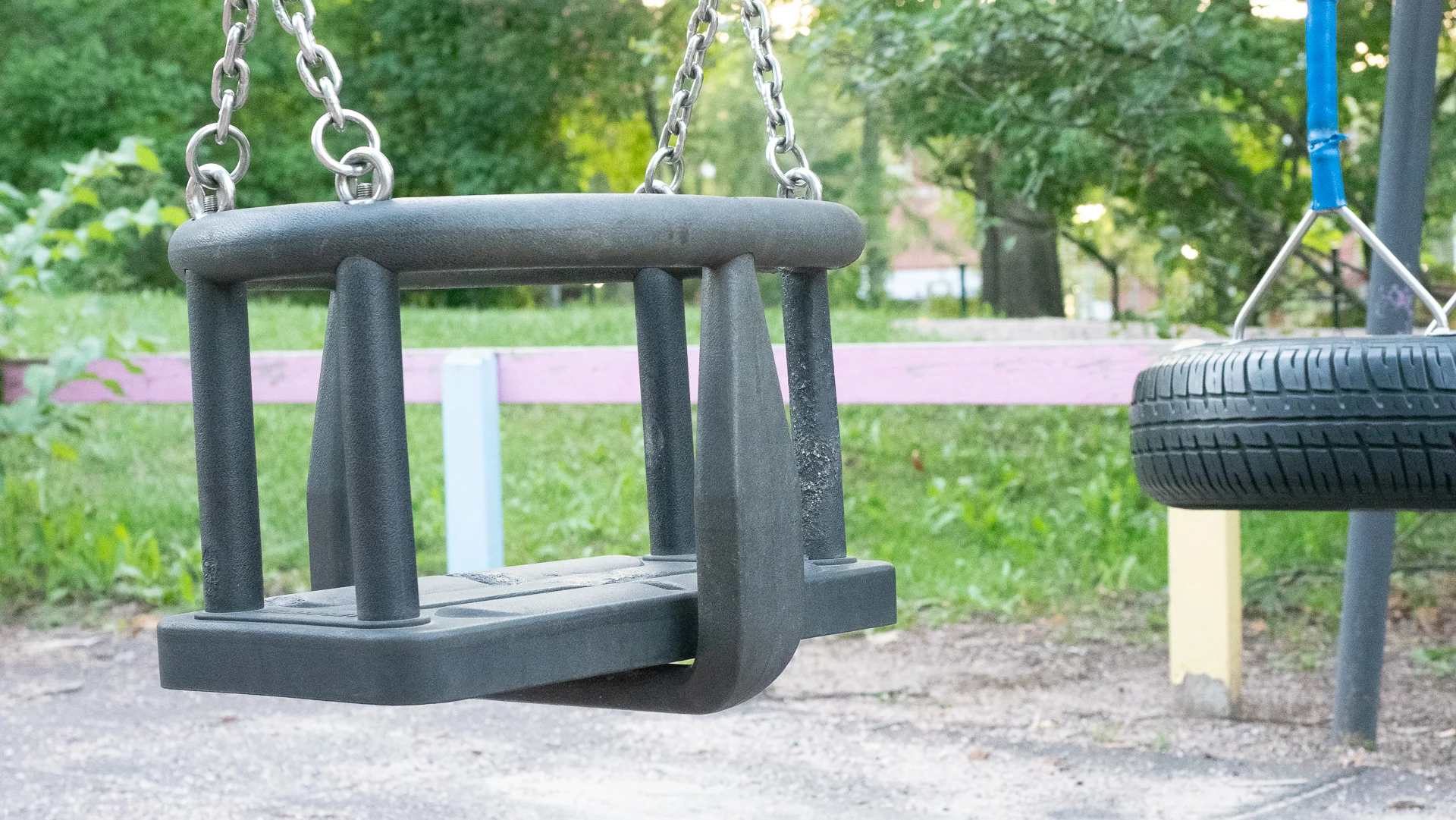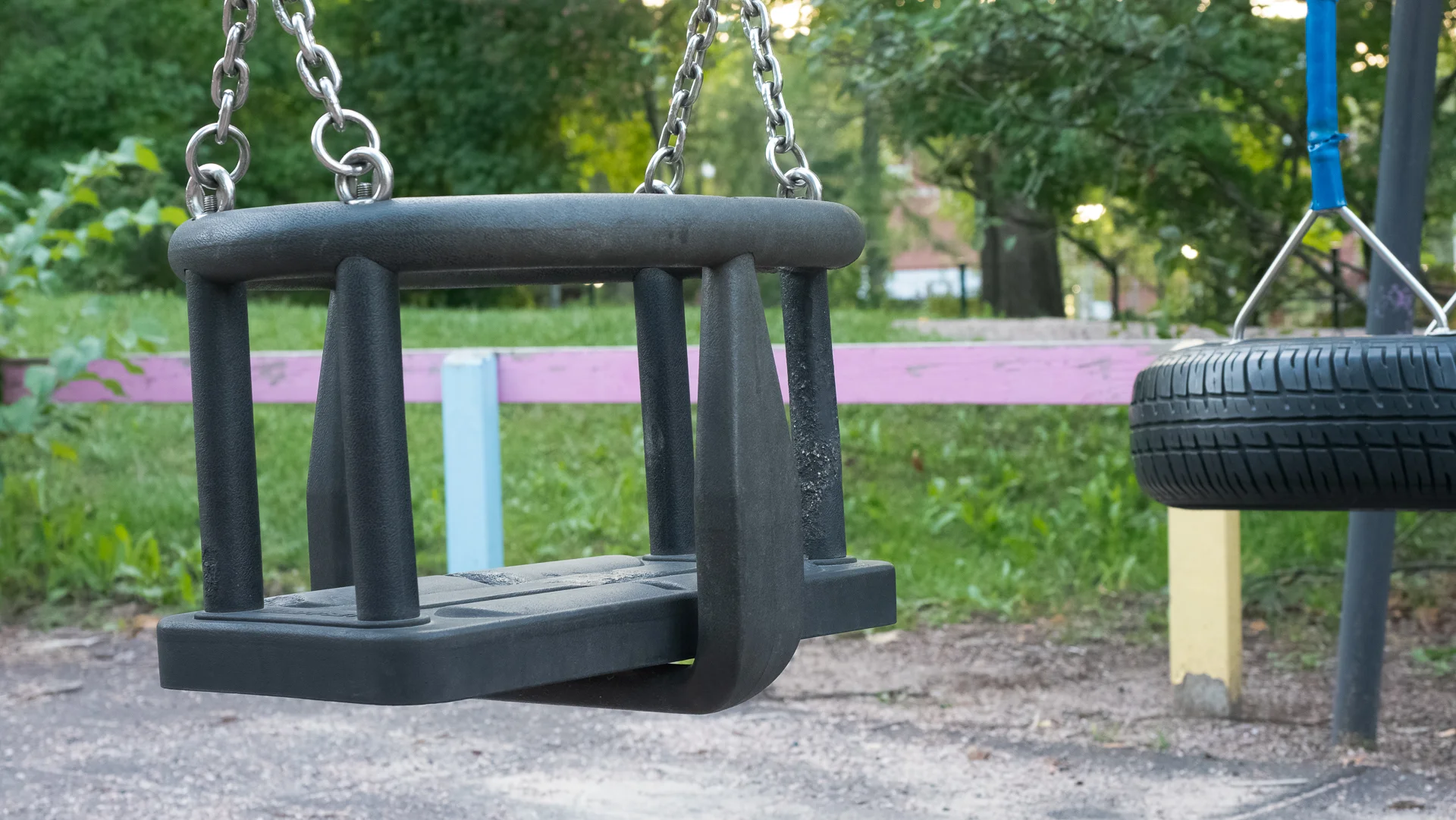

Noise is something we usually want to avoid in our photos. Noise can make the image quality worse. That is always a matter of opinion. Also, noise looks a bit different in different cameras. Some cameras can even produce quite pleasant looking noise. There are two kinds of noise, color noise, and luminance noise. I usually do not like the color noise that much. Luminance noise is not that bad, but of course, it can also be ugly looking.
How to avoid noise in photography:
Correct Exposure
Use RAW
Use as low ISO as possible
Avoid Long Exposure
Use Noise Reduction on Post
Noise Reduction in Camera Video

1. Correct Exposure
Getting your exposure correct when making the exposure is very important. If you need to increase the exposure, most likely the in shadows will become more visible. Getting the exposure correct when photographing will get you better results. If you shoot RAW then exposing the image as bright as possible and then lower the mid-tones and possibly also highlights in post will reduce the visibility of the noise.
2. Use RAW
Using RAW will make it possible to edit your images. Lowering the exposure in post like I mentioned in the previous tip will make the noise less visible. RAW will give you more flexibility.
3. Use as Low ISO as possible
Modern cameras have a very effective stabilizer. That will make long exposures possible without tripods. When using low ISO there will less noise in your images. If you have LowISO in your camera as one of the options, try that and see how it affects the noise level of your images.

4. Long Exposure Increases Noise
When using low exposure that increases noise. Many cameras have noise reduction in camera when exposure is more than certain seconds. In Olympus cameras that limit is 4 seconds. If your exposure time is 4 seconds or longer the camera will do noise reduction. Some cameras are not good in noise reduction and in most cases it is better to do in post. But the best way is to test it with your own camera.
5. Use Noise Reduction in Post
Image editing software usually has a noise reduction tool. Some work better than others. In most cases, I use the Lightroom noise reduction tool. But sometimes I use Topaz DeNoise AI. It works very well reducing noise.
If you are interested in Topaz DeNoise Ai click this link. Ii’s an Affiliate link. You do not pay extra and I get a small commission. Win-Win
Always remember not to overdo the noise reduction. Images start to look really plastic if you reduce too much noise. Always be very careful and easy on the noise reduction so that the details do not disappear.
6. Noise Reduction in Camera Video
I have a video about Noise Reduction on my YouTube -channel. There are a few more tips about the reduction.