Tag: Luminar

  • Luminar AI – a New Image Editing Software

    Luminar AI is a new image editing software from Skylum. You might be familiar with Luminar 4.3 and Aurora HDR 2020. Luminar AI is a brand new software and it is not an upgrade to Luminar 4.3. Luminar 4 will be supported until the end of 2021 and after that, it won’t get any updates, but of course, the software works after that if the computer supports it.
    Meet-Luminar-AI-2_1920.jpg


    Alternative to the traditional way of editing images.

    Richard Harrington from Skylum said in its webinar that Luminar Ai is an alternative to traditional editing. They said that they are focusing on the results and not the process. They have built the code from scratch and it is not based on the same 35-year approach that other image editing software is based on.

    Luminar AI uses AI to analyze your image and it will give you suggestions. Accent AI is the AI that analyzes the image. The material that they showed on the webinar said that many controls like shadow/highlight, contrast, curves, etc. are reduced to one slider. AI is the key here. This will make it easier to start editing. Richard Harrington from Skylum said that for many the problem is where to start. With Luminar AI it will be easier.

    I think this is an interesting new approach. to image editing. Skylum is very ambitious about this they said that they want to be a global leader in computational photography. I like that kind of attitude. They call the suggestion that AI has made a template. Of course, that template can be adjusted and saved.


    Skin AI helps with portraits.
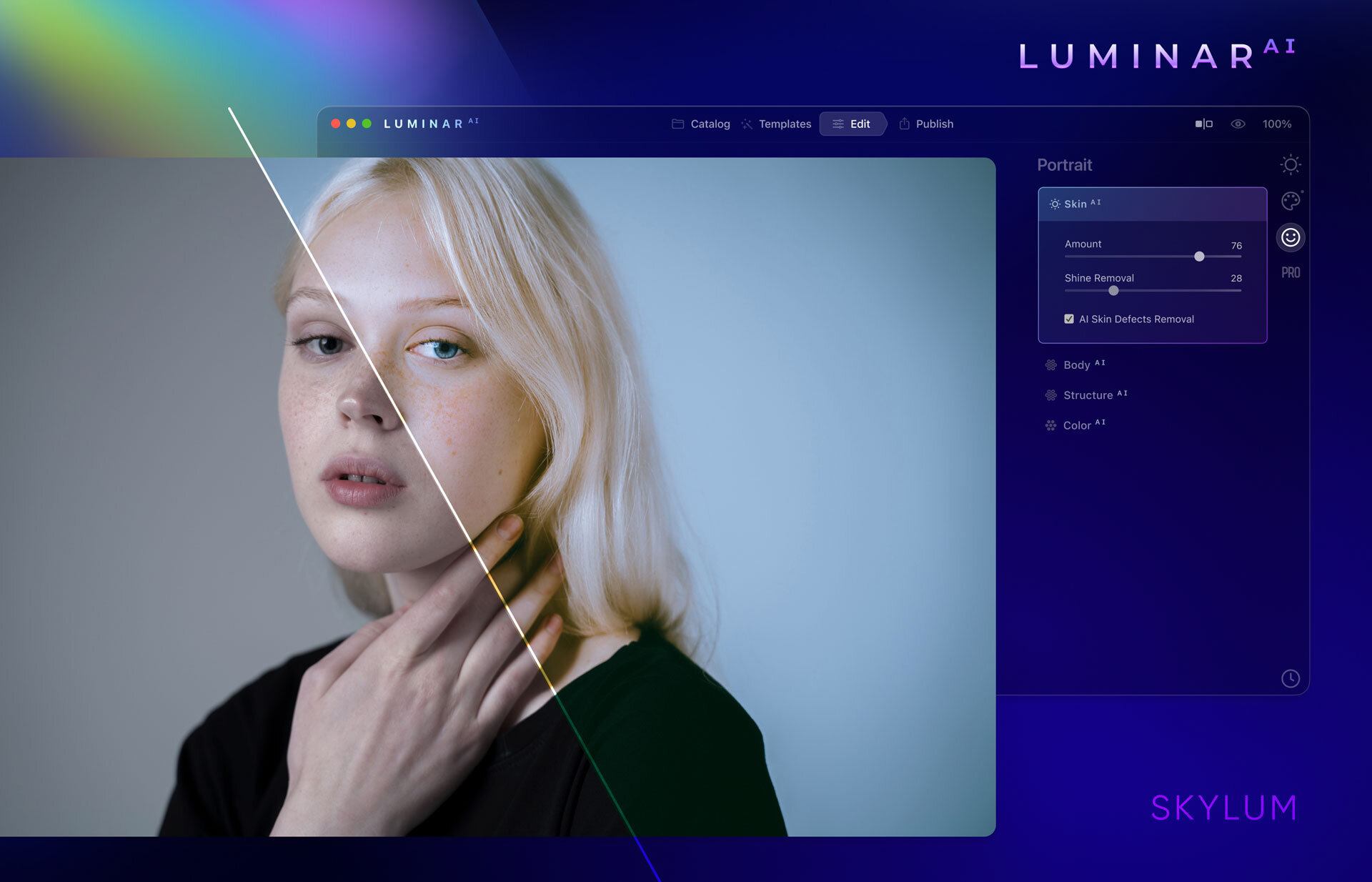
    Screenshot from Luminar AI and its Skin AI. Image: Skylum
    Screenshot from Luminar AI and its Skin AI. Image: Skylum

    The feature to help to retouch portraits is called Skin AI. It will totally replace frequency separation. That is a time saver. Saving time is one key thing that Skylum is aiming for with it is Luminar AI.


    Works as standalone software and as a plug-in.

    Good thing is that Luminar AI will work as a plug-in for Lightroom. A t least for me that is very important. The Library in Lightroom is the database of my images. Luminar AI does not have some kind of database functionalities as Lightroom has. If you want to use Luminar AI as standalone software, it will work fine. It works from Lightroom 6 and up as a plug-in. The oldest Photoshop version it works with is CS5.

    Specifications for your computer

    For macOS, you need at least i5, 8GM RAM (16GB is recommended), macOS10.13.6 or higher. It will also support OS Big Sur when it is launched. In PC you need to have Windows 10. Win7 and 8.1 are not supported. The processor needs to be at least i5 or AMD Ryzen 5 or better. Also, you need Open GL3.3. or later compatible graphics cards. (disclaimer: This info is copied from the presentation material Skylum presented in their webinar on the 31.8.2020.)


    How does AI work?

    The success of Luminar AI will be based on its ability to give the right suggestion for the edit. We all tend to like a bit different thing and hopefully, Luminar AI is good enough to learn from the user. I think that would be great. Otherwise, it might be that we all are going in the same direction with the look of our images.

    Skylum claims that its AI will recognize different elements in the photograph and make suggestions based on that information. It will recognize skies, water, faces, etc. Those who have used Luminar 4 and its Sky Replacement tools know that its recognition works pretty well. If Luminar Ai is an improved version I have no doubts about its capabilities.
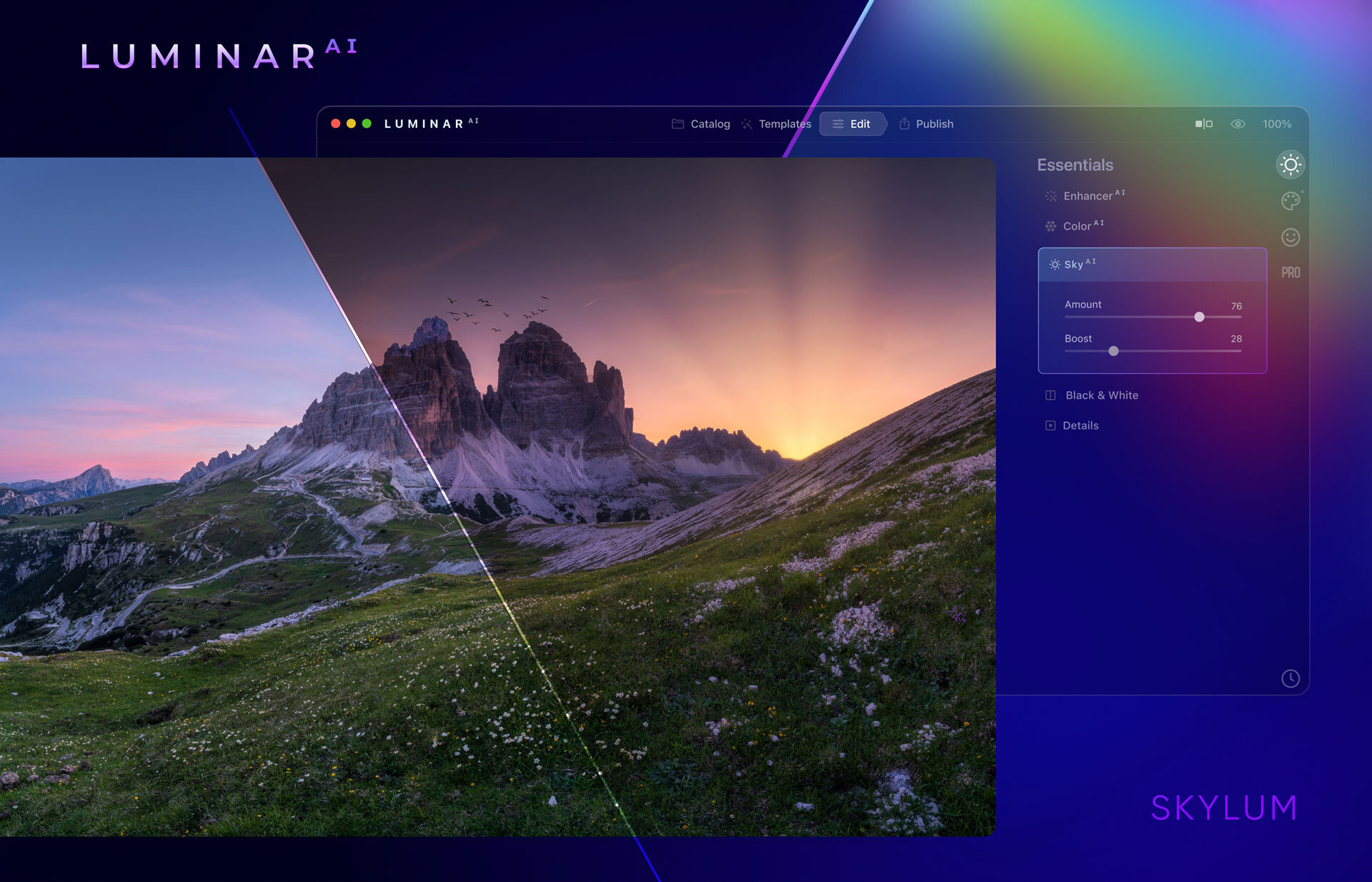
    image: Skylum
    image: Skylum


    You can override the AI.

    You have three options, choose the option that AI suggested, customize it, or edit from scratch. I think that is a good approach that it is not fully automated.

    Lens correction is possible

    I found that one of the biggest downsides in Luminar 4 was the lack of lens corrections. I am glad that that will be available in Luminar AI. It is an essential tool because. all lenses have a bit of distortion and CA.

    Pre-order and Availability

    You can pre-order Luminar AI from this link. Pre-order is possible for the first 30.000 early birds. It will have a special price. As an early bird, you will also be invited to the Luminar AI Insider program. It is a private community and you will get special deals, tutorials, etc. that others won’t get.

    If you have doubts, do not. You will a 30-day money-back guarantee from the day the software actually ships. So no risk getting Luminar Ai now.

    The price for early birds is US$69,- for new customers. If you already have Luminar 4, Aurora2019, or Aurora HDR the price is US$59,-. After the 30.000 is sold the price will go up.

    Preorder the Luminar AI now and get all the benefits.

    The final release date is not confirmed yet. Skylum said that it will available this holiday season.

    disclaimer: some of the links are Affiliates links. If you buy something I will get a small commission, but you do not pay anything extra.
  • Image Editing – Should you edit or not?

    Image editing is something that has to be done to every image. It is like a film negative that has to be “printed”. Very seldom a digital file is ok what it comes to colors, contrast, etc. straight out of the camera. It needs to be fixed.

    What is the difference between editing and manipulation?

    Image Editing is adjusting the image colors, adjusting the highlight, shadows, and/or contrast. Image editing is not manipulation. It is considered manipulation if you add or remove objects from your image. This is a very simple answer, but also it clearly describes the difference.

    Image editing is almost always ok, but manipulation can be forbidden in some cases. Photojournalism is one genre where no manipulation is allowed. That is very understandable. Nature photography is another genre where manipulation can be “forbidden”. Especially if you send your image to Nature photography competition. Rules are pretty strict and for good a reason.

    P8070175.jpg

    What is the workflow in image editing?

    Workflow is very important when editing images. To do things in the same order the editing goes much faster.


    Step 1: Photograph the best possible original

    Try to get the best possible original as possible. Use raw if you are planning to edit your images. Raw-files have a lot more information to work with than jpg images.

    Image editing is not for saving poorly made and exposed images. Sometimes it is possible to save something, but it will never be the same compare to a well photographed original.

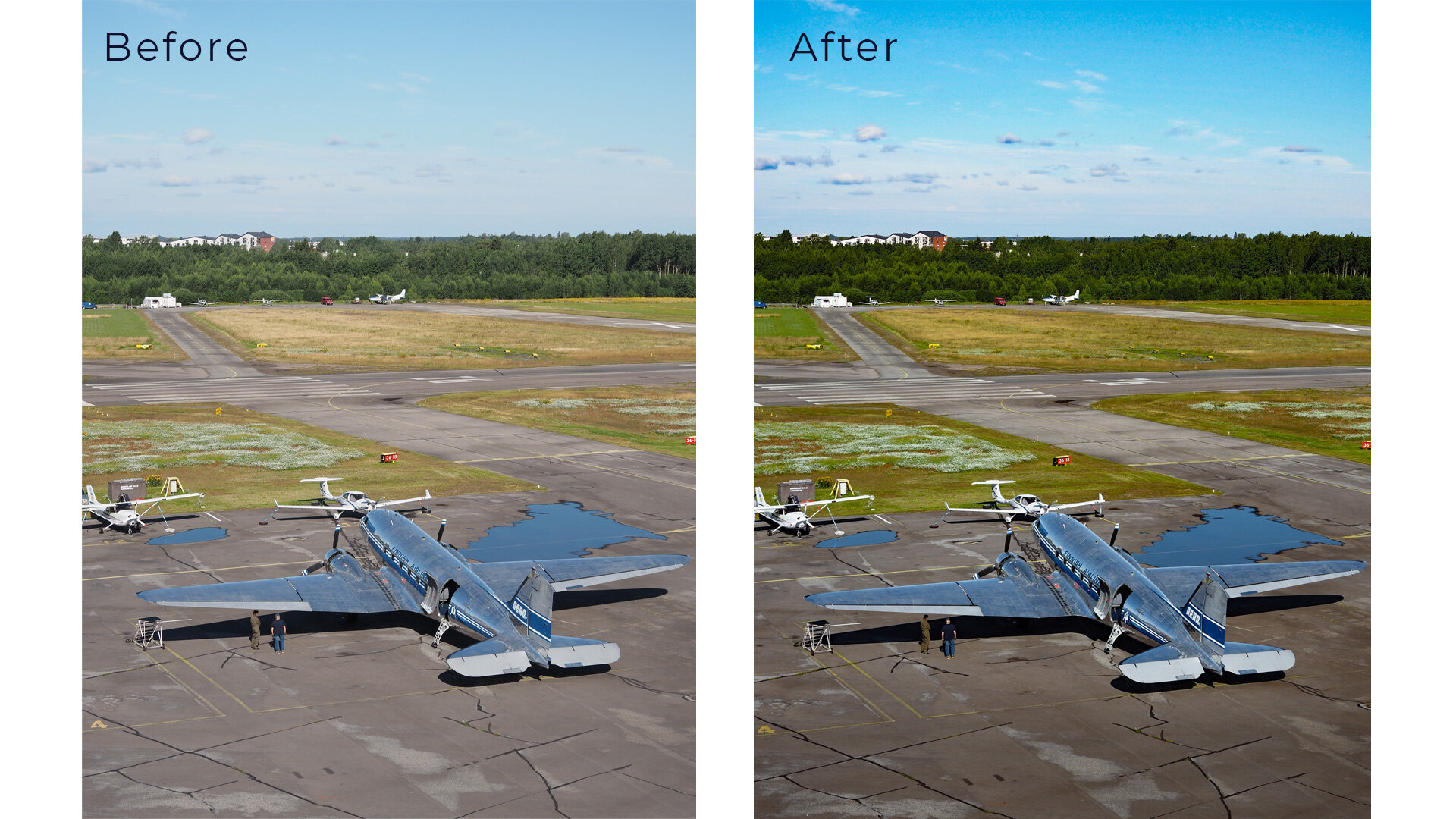
    DC-3 Air Veteran at Malmi Airport in Helsinki.
    DC-3 Air Veteran at Malmi Airport in Helsinki.


    Step 2: Start with global adjustments

    Start with global adjustments. Global adjustments are adjustments that are done to the whole image so that it will affect every pixel in the image.

    The first step is to adjust the white balance. Getting the white balance correct when making the photo is something to aim for. Especially if you shoot jpegs. Then it is almost a must. Raw images are also better what it comes to white balance. It can be correct easily. You can use the eyedropper tool to click something neutral like white or middle grey to correct the wrong white balance. It can also be adjusted whit the slider.

    The next step is to fine-tune the exposure. If you have used ETTR (Exposure to the Right) then you most likely need to lower the exposure. This way a bit washed out look will go away and the image looks more natural. How much to lower? That is up to you and it depends on your style like everything in editing does.

    The third step is adjusting the contrast. Adding contrast brings back the colors and sharpness. You can also use Clarify and Dehaze tools. Both of these tools also have an effect on contrast. But do not overdo it. It can ruin your images if done too much.

    The fourth step is to check the colors. If you think that the color is not the way you want them to be then adjust them to your likings. This one also is a matter of personal taste. Adding some saturation and vibrance can make the image better. Remember that sometimes it might even be better to lower the saturation and/or vibrance. If there are people in the photo look that skin tones are the way you want. If the skin tones are too red it usually does not look that good.

    The fifth step is to clone out dust spots and other things that might be distracting. Now we are on the borderline with manipulation. Cloning out dust spots is ok and should be done if there is dust on your sensor that shows in your images. Anything else is optional like cleaning up skin etc. But remember not to overdo the “cleaning” with the skin.

    Step 3: Local Adjustments.

    Local adjustments mean that you only affect a part of the image. The cloning that was mentioned in the previous step can be also considered to be a local adjustment. Adjustments are about the same as in global adjustments and also the tools are pretty much the same. Typical adjustments are exposure corrections in different parts of the image. You might want to lower/increase the highlights or shadows.

    Principals of editing

    What I mean by this is the things that we should consider. The main to understand how people look at images. What do they see first?

    People see the bright areas first and then the rest. That is just the way our eyes work. Try to have your subject in the brightest area of the image. This can be emphasized in editing. Increase the exposure on your subject or lower the exposure around your subject. Usually, the latter thing is better – lower the exposure around your subject. This will give more attention to your subject.

    The second principle is not to over-edit your images. Try to keep the editing so that the image looks natural. But of course, that also depends on your personal style.

    What Image Editing Software to use?

    The short answer is the one you are most familiar with. I personally use Lightroom as my main editing software. I have used it so many years that I am used to it. But I also use other software like Photoshop, Luminar 4.3, Aurora HDR, and Topaz DeNoise. They all work as plug-ins for Lightroom. Yes, Photoshop is also a plug-in for men. Very seldom do I open images straight in Photoshop. All these plug-ins have a different purpose. Photoshop is used for composite images. That is when I want to merge several images for example. For HDR I use Aurora HDR. I think it is the best HDR software on the market right now. Luminar 4.3 is the software I use the least. It is good for landscapes. Topaz DeNoise AI is an excellent noise reduction software.

    Links might be affiliate links. Use promo code JPETERF to get 10% off on Luminar and Aurora HDR.

    (Disclaimer: the coupon code is valid at the time this blog post was written, but it might not work in the future if the affiliate deal is not available.)