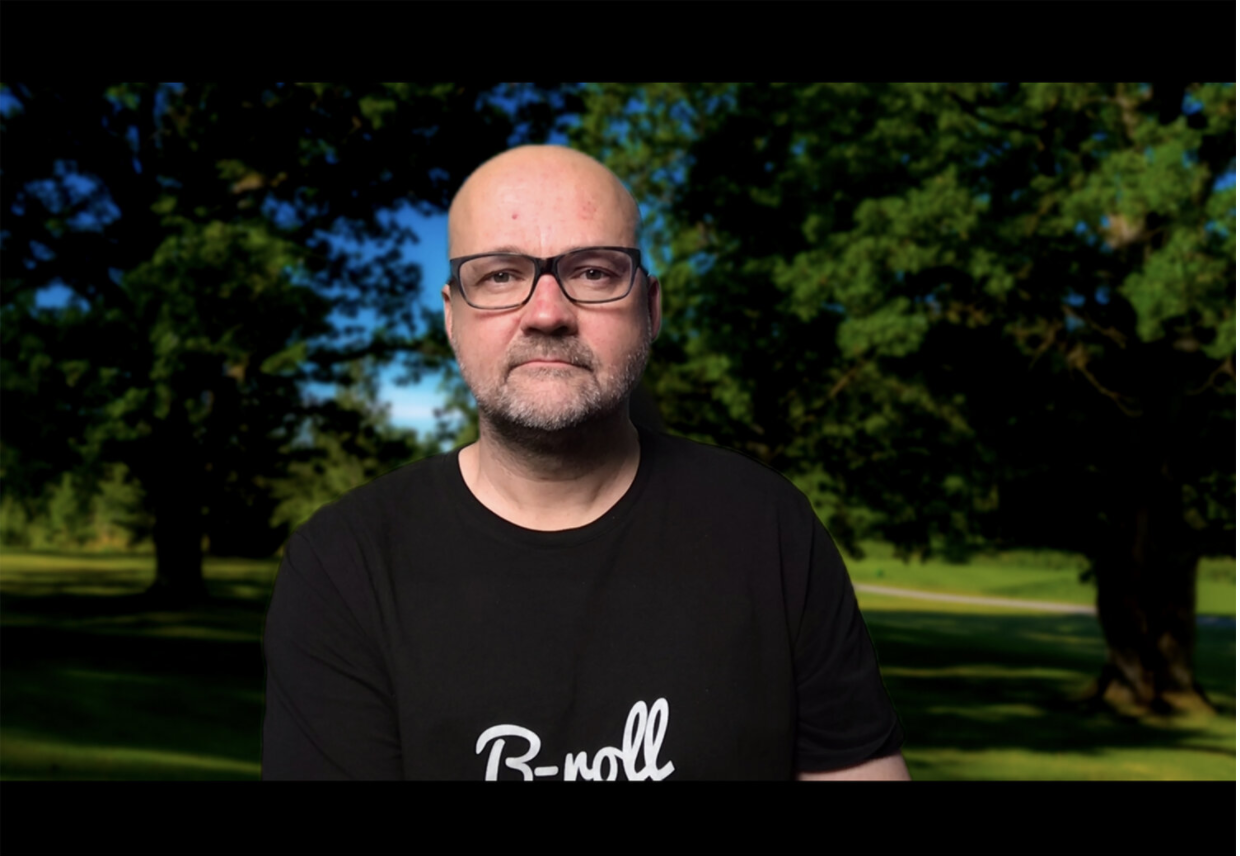
Online meetings have become more and more popular. We have just had to adapt to the current situation. I bet for many it has been a quite a good way of working. It has saved us a lot of time too. No commuting several hours a day, no business trips. Working from home and using online meeting tools all day long can also be very exhausting. These tips might not be for that, but looking on the camera makes you feel better. Setting up your work area so that it is as pleasant as possible to spend the workday on online meetings.
1 – Try to have as quite place for your online meetings as possible.
I know that this could be a bit hard sometimes. There might be a lot of distractions at home. If you have such a place for you at home, you are lucky. Use carpets and drapes to make the audio better. With carpets and drapes, you can reduce the echo in the room. This will increase the quality of the audio a lot. Simple and easy solution. A quite place naturally also minimizes the background noise.
Adding sound panels to your home office is also a good solution. There are a lot of different kinds. Here are two examples:
2 – Good lighting is crucial!
Having a backlight is the worst way of lighting your face during online meetings. Try to have a light in front of you and if possible bounce it from a light-colored wall. If the wall is painted dark then it might not be possible to use it as a reflector.
If you need or have the chance to work from home also in the future after the pandemic is over I suggest that you invest in better lighting. LED lights are getting better and cheaper.
Here are some LED lights that are good for this:
If you do not want to invest in lightning use window light. Place your desk so that you are facing a window. It will give you a nice natural light. Try to avoid direct sunlight. Also, the downside is that the light might be constantly changing. But in most cases, it still better than having the window behind you.
Pro tip: See if your online meeting software has a feature called Touch up my Appearance as Zoom has. That will smooth your skin a bit.
3 – Good audio is important
Having good audio is almost more important than having a good video quality. The tip to have as small amount of echo as possible in the room is a good start.
Laptops have quite good microphones, but an external microphone will lift your audio to the next level. There is a lot of option. Most mobile phones come with headphones that have also a microphone. If those can be attached to your computer try those first. there is the benefit of having also headphones. Some headphones come with a microphone.
An external microphone will increase the audio quality. I personally recommend Rode mics. They are very reasonably priced and have very good audio quality. Rode has a vide variety of different mics.
Here are some option for good quality microphones and headphones:
4 – Use a good quality webcam
Good image quality is as important during an online meeting as it is in a corporate video. You do not want to show a messy background and a poorly lit face. Would you do that during a face to face meeting at the office meeting room? Most likely not?
Laptop have quite good webcams, but a proper external webcam is usually a lot better option. Many camera companies have free software that makes it possible to use a real camera as a webcam. If you have an old camera that you do not use check out if it is possible to use t as a webcam. For even more quality and more option, you can use a video capture device. You connect your camera to the capture device with an HDMI cable. The HDMI connection can also handle audio. So having an external microphone on your camera is a good solution. Usually, with USB connection you need a separate microphone for your computer.
Here is a video about OM-D Webcam Beta which is the free webcam software for Olympus OM-D cameras. OM-D Webcam Beta works with Windows 10 and macOS (from Sierra and newer)
Olympus OM-D cameras works great as Webcams. The new OM-D Webcam Beta uses USB for connection. It is available for Windows 10 and macOS.
Logitech BRIO is one of the best webcams on the market.
5 – Have your webcam on eye level.
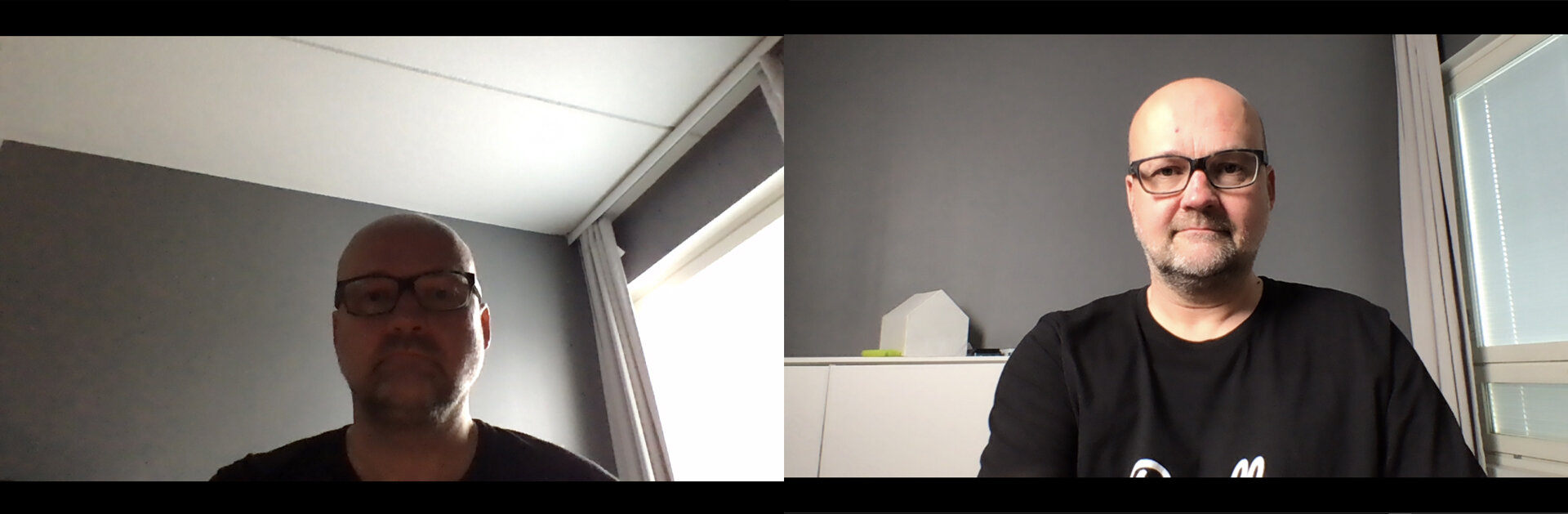
Too many times have I seen people having their webcam too low. Lift up the laptop so that you have the webcam on the eye level. It will make the image look so much better. The face looks better when photographed from eye level than it looks from a low angle.
6 Extra tip – Backgrounds – Use your own Photos.
If you have problems with your background. You just cannot make it nice a clean you can use virtual backgrounds. Most online meeting software like Zoom has background photos to choose from. These are ok, but everyone is using them and it is a bit cheesy. Why not use your own photos? Have a nice landscape or have images from your office as your background?
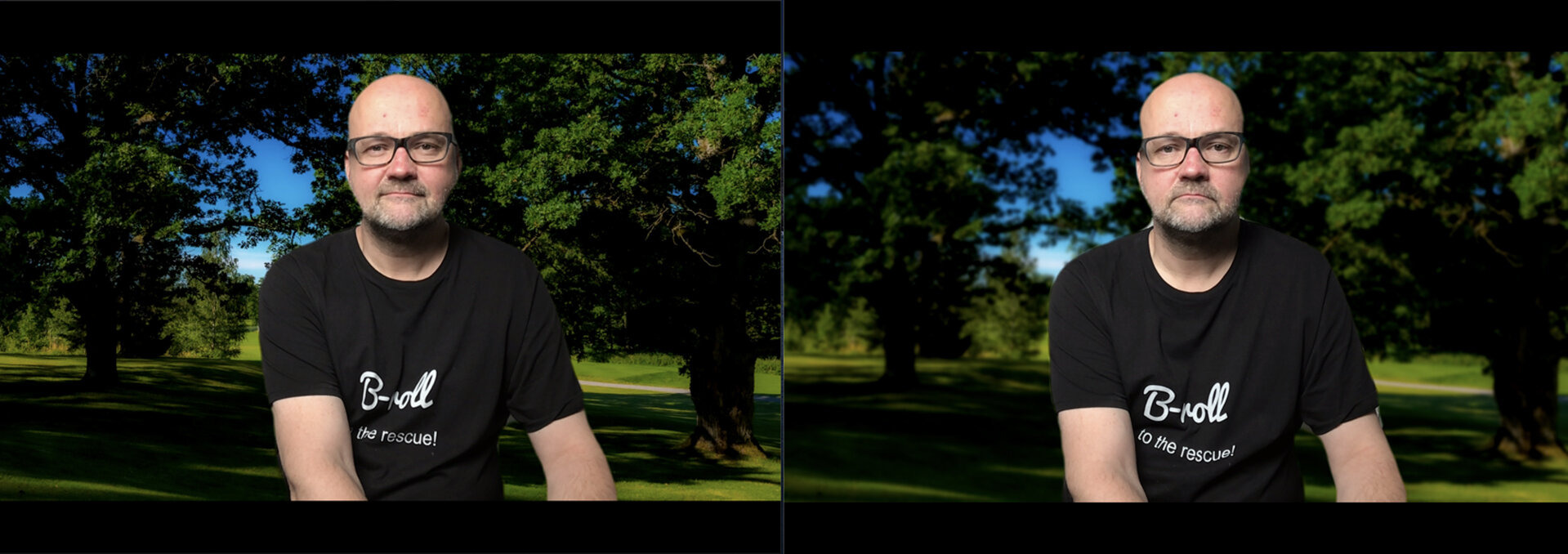
Pro tip: blur the background photo a bit to make it look more natural. If the background image is sharper than your face it won’t be very natural. If you do not have an image editing software to blur the images you can photograph them a bit unsharp. Try different levels of unsharpness to see which looks the best for you.
Pro tip 2: Make images a bit brighter than normal. At least Zoom seems to show images darker than image editing software.
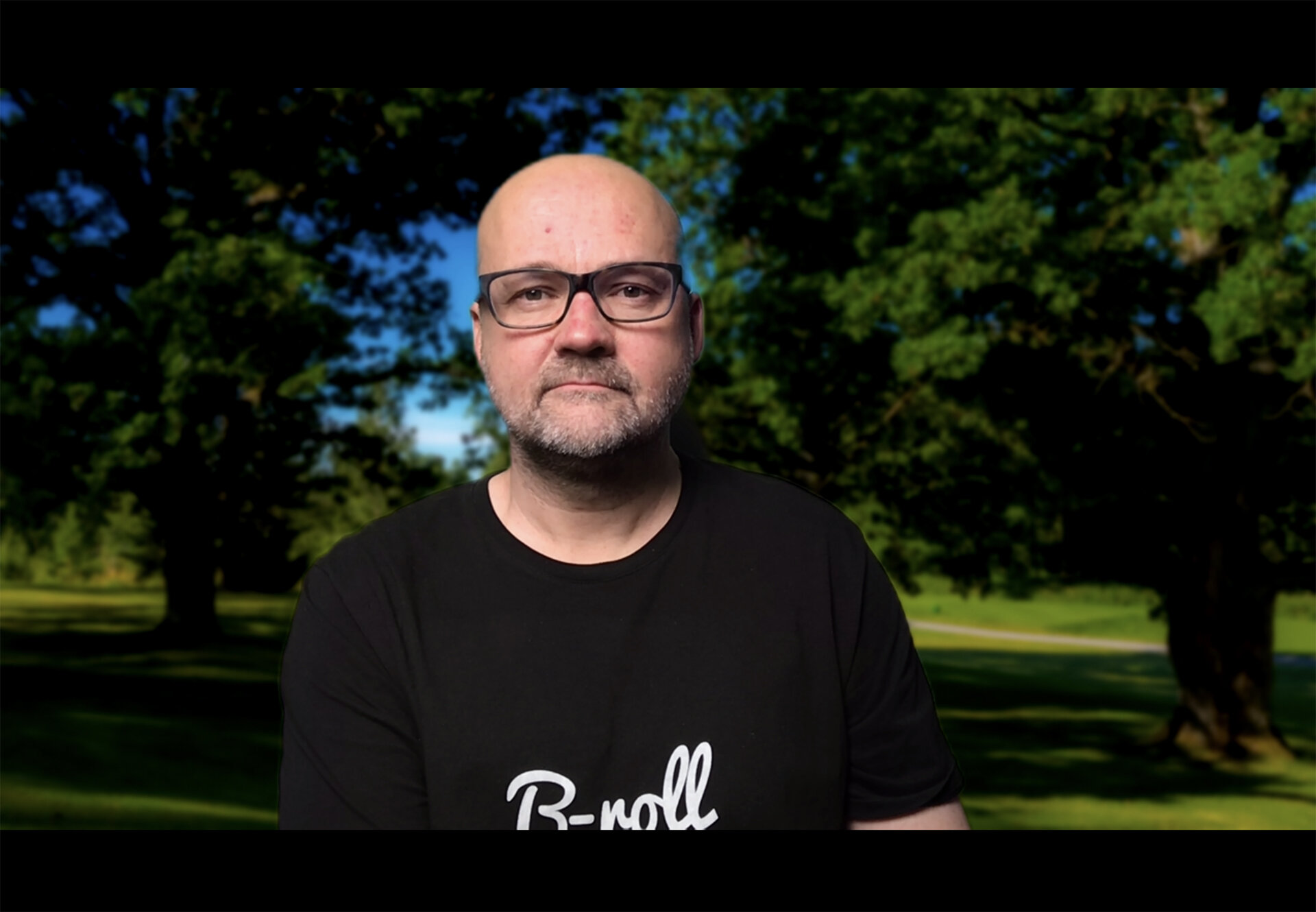
Zoom is quite good with backgrounds even if you do not have a green screen. Having a green screen will make the background image look even better. With the green screen is a lot easier to separate you from the background. Using a green screen with a background image is also possible with older computers. It does not require so much power. Emart has a very handy green screen that can be easily put away when not needed.
I hope these tips help you to improve your online meeting presence. Here is a link to all the gear that I have linked in this blog post: Home Office gear for better Video and Audio Quality.
Disclaimer: some of the links on this blog post are Amazon Affiliate links. If you buy something from Amazon after clicking these links I do get a small commission. You do not pay anything extra so it is a win-win situation!
Leave a Reply