
Peter Forsgård

photographer

  • Look Better on Video Calls – [5 TIPS to Make the Video (and Audio) Quality Better!

    Look Better on Video Calls – [5 TIPS to Make the Video (and Audio) Quality Better!

    Online meetings have become more and more popular. We have just had to adapt to the current situation. I bet for many it has been a quite a good way of working. It has saved us a lot of time too. No commuting several hours a day, no business trips. Working from home and using online meeting tools all day long can also be very exhausting. These tips might not be for that, but looking on the camera makes you feel better. Setting up your work area so that it is as pleasant as possible to spend the workday on online meetings.

    1 – Try to have as quite place for your online meetings as possible.

    I know that this could be a bit hard sometimes. There might be a lot of distractions at home. If you have such a place for you at home, you are lucky. Use carpets and drapes to make the audio better. With carpets and drapes, you can reduce the echo in the room. This will increase the quality of the audio a lot. Simple and easy solution. A quite place naturally also minimizes the background noise.

    Adding sound panels to your home office is also a good solution. There are a lot of different kinds. Here are two examples:

    Dekiru Acoustic Foam

    Xin & Log Acoustic panel

    2 – Good lighting is crucial!

    Having a backlight is the worst way of lighting your face during online meetings. Try to have a light in front of you and if possible bounce it from a light-colored wall. If the wall is painted dark then it might not be possible to use it as a reflector.

    If you need or have the chance to work from home also in the future after the pandemic is over I suggest that you invest in better lighting. LED lights are getting better and cheaper.

    Here are some LED lights that are good for this:

    Neewer Ultra Thin LED

    Falcon Eye SO-28TD

    If you do not want to invest in lightning use window light. Place your desk so that you are facing a window. It will give you a nice natural light. Try to avoid direct sunlight. Also, the downside is that the light might be constantly changing. But in most cases, it still better than having the window behind you.

    Pro tip: See if your online meeting software has a feature called Touch up my Appearance as Zoom has. That will smooth your skin a bit.

    3 – Good audio is important

    Having good audio is almost more important than having a good video quality. The tip to have as small amount of echo as possible in the room is a good start.

    Laptops have quite good microphones, but an external microphone will lift your audio to the next level. There is a lot of option. Most mobile phones come with headphones that have also a microphone. If those can be attached to your computer try those first. there is the benefit of having also headphones. Some headphones come with a microphone.

    An external microphone will increase the audio quality. I personally recommend Rode mics. They are very reasonably priced and have very good audio quality. Rode has a vide variety of different mics.

    Here are some option for good quality microphones and headphones:

    Rode NT-USB

    Rode NT-USB Mini

    Sony WH-CH700N

    Sony WH100MX3

    4 – Use a good quality webcam

    Good image quality is as important during an online meeting as it is in a corporate video. You do not want to show a messy background and a poorly lit face. Would you do that during a face to face meeting at the office meeting room? Most likely not?

    Laptop have quite good webcams, but a proper external webcam is usually a lot better option. Many camera companies have free software that makes it possible to use a real camera as a webcam. If you have an old camera that you do not use check out if it is possible to use t as a webcam. For even more quality and more option, you can use a video capture device. You connect your camera to the capture device with an HDMI cable. The HDMI connection can also handle audio. So having an external microphone on your camera is a good solution. Usually, with USB connection you need a separate microphone for your computer.

    Here is a video about OM-D Webcam Beta which is the free webcam software for Olympus OM-D cameras. OM-D Webcam Beta works with Windows 10 and macOS (from Sierra and newer)

    Olympus OM-D cameras works great as Webcams. The new OM-D Webcam Beta uses USB for connection. It is available for Windows 10 and macOS.

    Logitech BRIO is one of the best webcams on the market.

    5 – Have your webcam on eye level.

    Too many times have I seen people having their webcam too low. Lift up the laptop so that you have the webcam on the eye level. It will make the image look so much better. The face looks better when photographed from eye level than it looks from a low angle.
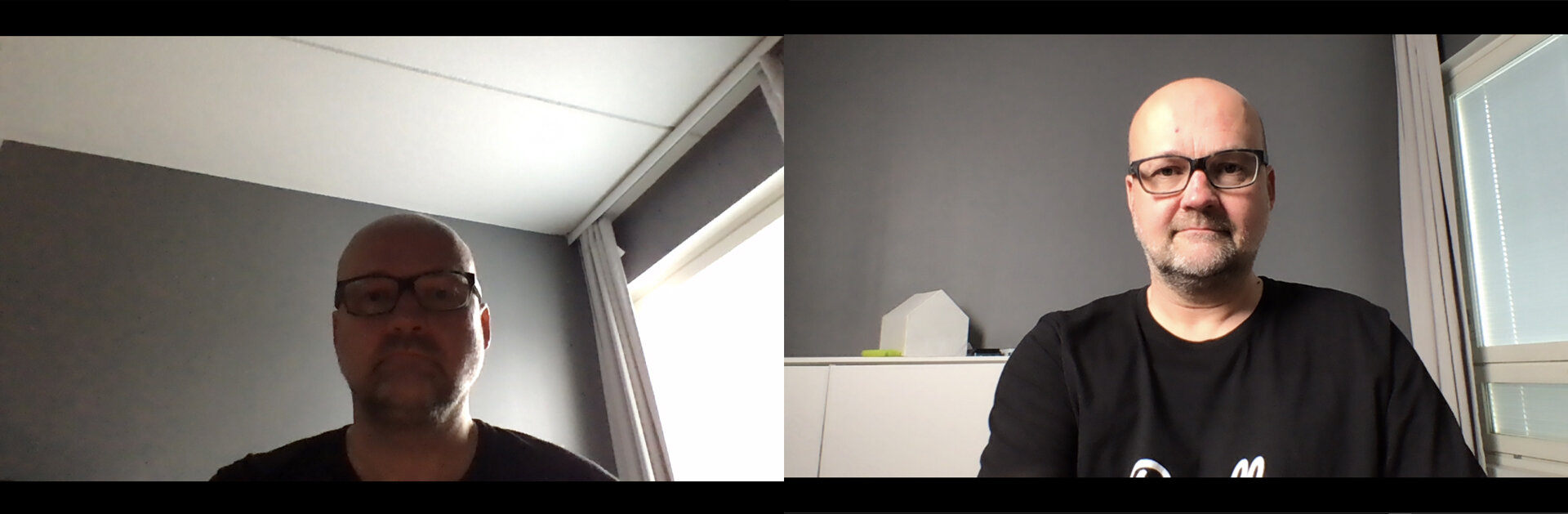
    As you see, having the camera on eye level and having good lighting makes a big difference. Also a clean background is good so that there are no distractions.
    As you see, having the camera on eye level and having good lighting makes a big difference. Also a clean background is good so that there are no distractions.


    6 Extra tip – Backgrounds – Use your own Photos.

    If you have problems with your background. You just cannot make it nice a clean you can use virtual backgrounds. Most online meeting software like Zoom has background photos to choose from. These are ok, but everyone is using them and it is a bit cheesy. Why not use your own photos? Have a nice landscape or have images from your office as your background?

    Pro tip: blur the background photo a bit to make it look more natural. If the background image is sharper than your face it won’t be very natural. If you do not have an image editing software to blur the images you can photograph them a bit unsharp. Try different levels of unsharpness to see which looks the best for you.

    Pro tip 2: Make images a bit brighter than normal. At least Zoom seems to show images darker than image editing software.
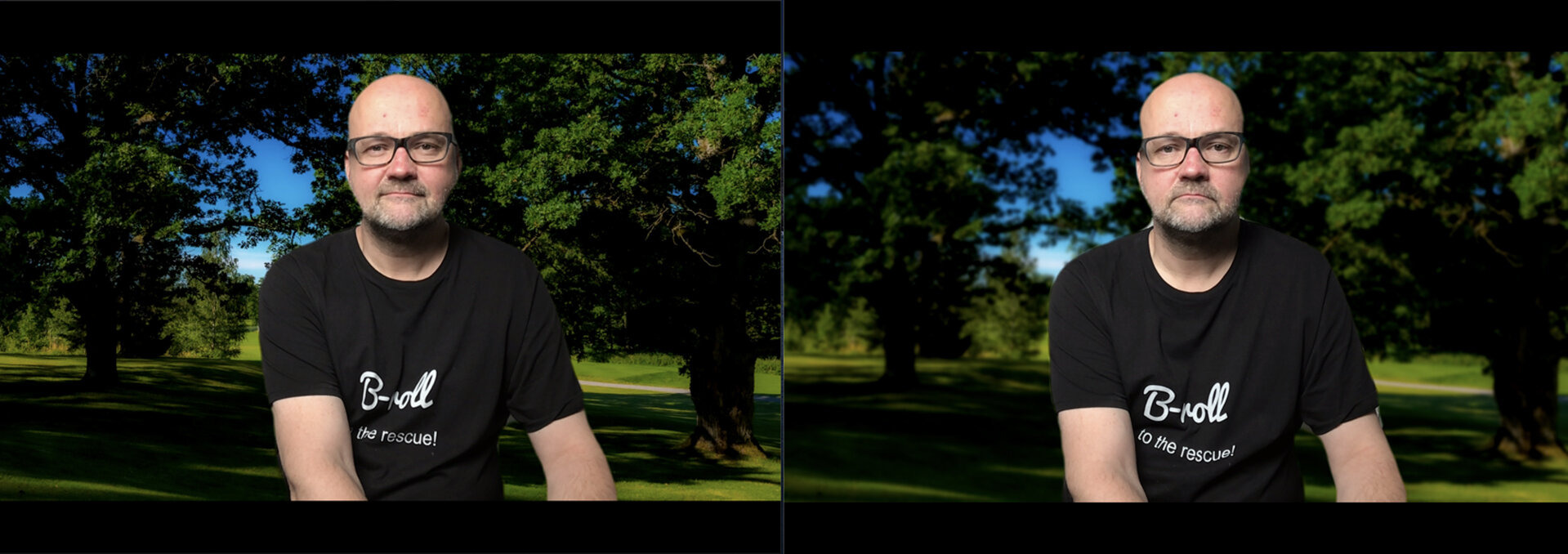
    On the left the background is sharp and on the right it is a bit blurred.
    On the left the background is sharp and on the right it is a bit blurred.

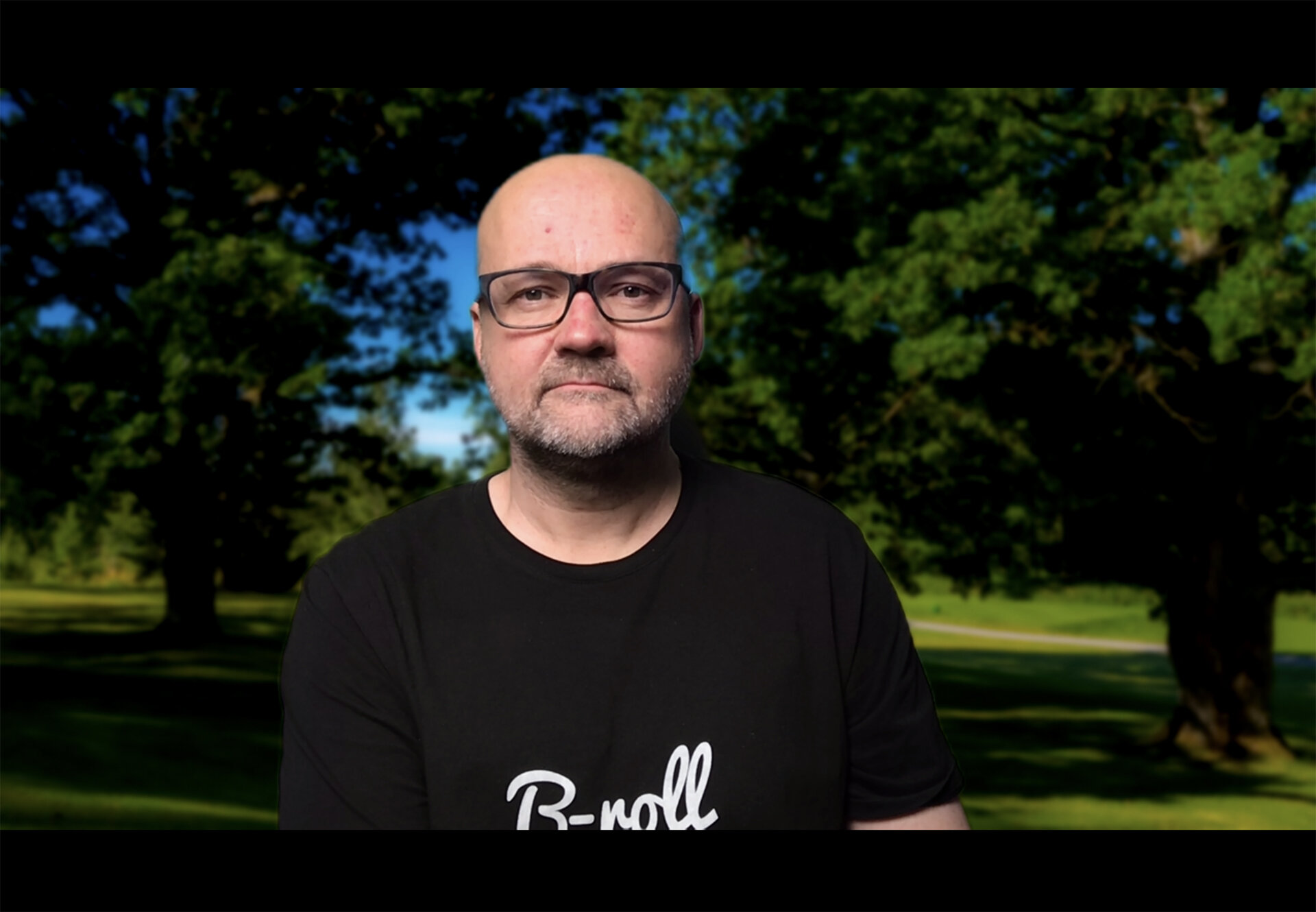
    Zoom is quite good with backgrounds even if you do not have a green screen. Having a green screen will make the background image look even better. With the green screen is a lot easier to separate you from the background. Using a green screen with a background image is also possible with older computers. It does not require so much power. Emart has a very handy green screen that can be easily put away when not needed.
    Emart Green Screen

    On this one I had a green screen and it looks a lot better. The shape of my head is not skewed like it is with out a green screen.
    On this one I had a green screen and it looks a lot better. The shape of my head is not skewed like it is with out a green screen.

    I hope these tips help you to improve your online meeting presence. Here is a link to all the gear that I have linked in this blog post: Home Office gear for better Video and Audio Quality.

    Disclaimer: some of the links on this blog post are Amazon Affiliate links. If you buy something from Amazon after clicking these links I do get a small commission. You do not pay anything extra so it is a win-win situation!


  • Mastering Exposure – [3 Tips to Get the Right EXPOSURE]

    Mastering Exposure – [3 Tips to Get the Right EXPOSURE]

    Getting your exposure correct is one of the most important things if you want your image quality to be the best possible. Of course, a great image is more than just exposure, but it is an important thing.

    3 tips for better exposure

    The first tip is to learn the way your camera makes the exposure. What I mean by that is the different metering modes. Learn the different metering modes to get the best exposure.

    image_001.jpg

    The second tip is to use raw and ETTR. Using raw you have the possibility to expose to the right. The reason to use ETTR (Exposure to the Right) is that then the sensor is capturing the most amount of data. The image quality is the best possible. The reason for that is the way the sensor captures data. There is more information in the highlights than there is in the shadow areas.

    An image that is exposed using ETTR will look a bit washed out. It is too bright. The image needs post-production. Lowering the exposure and highlights will make the image better looking.

    This only works for raw and should not be used when shooting jpegs.

    When using ETTR it is crucial that you do not clip the highlights like always, no matter what the exposure method is.

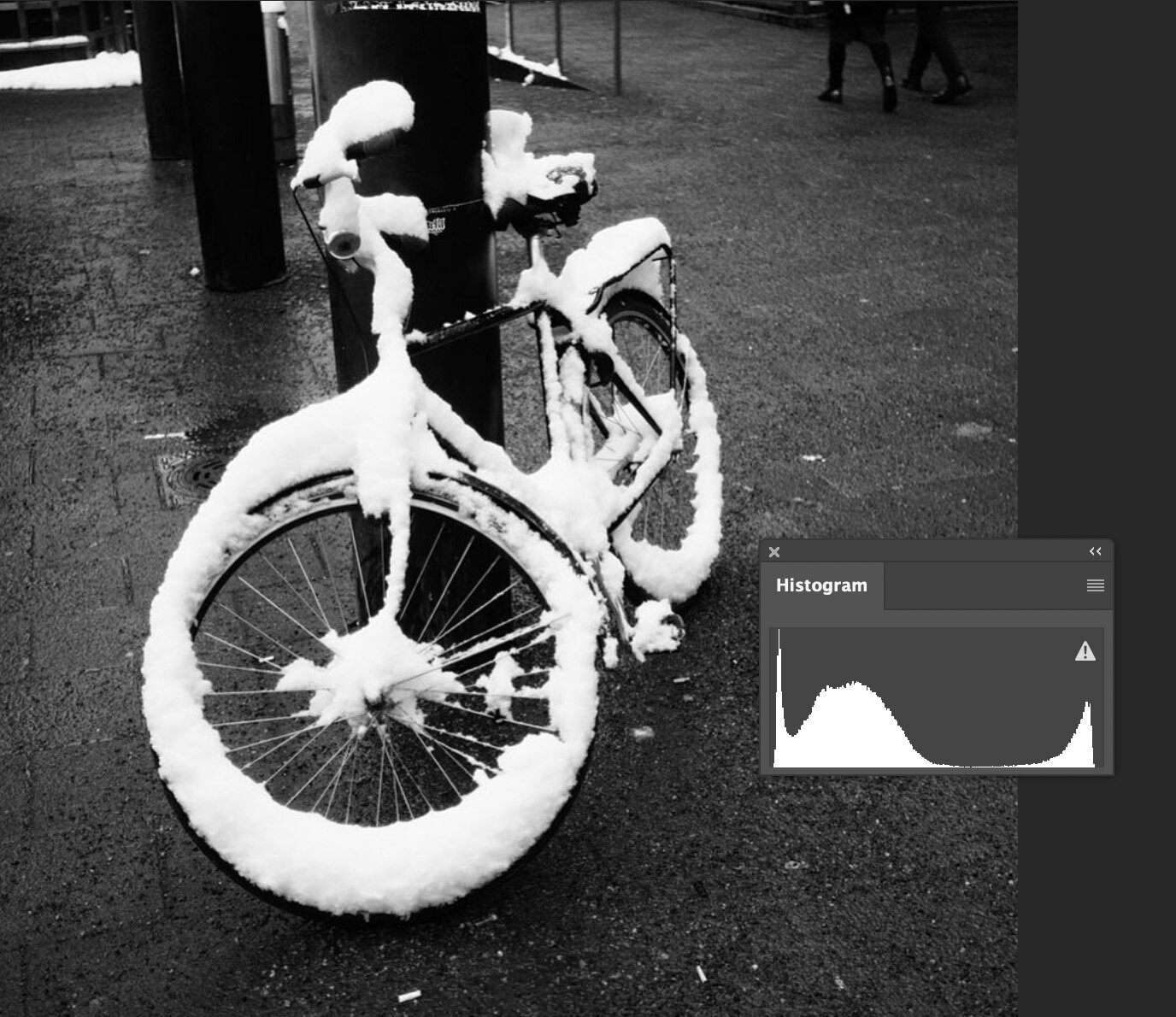
    Usually, an image that has been photographed using ETTR has most of the info on the right side of the histogram. But if you have an image where you have a white bird and a dark background will have a lot of info on the shadow. The histogram looks like the image is exposed to the left. But it still can be an ETTR image. It depends on where the brightest spot is on the histogram. If it is just on the histogram value 254-255 then it is ETTR.

    This is an example of an image that is ETTR even though the histogram might not look like it. As you see the snow on the bike is not over exposed. The whites pixel is around 254.
    This is an example of an image that is ETTR even though the histogram might not look like it. As you see the snow on the bike is not over exposed. The whites pixel is around 254.

    The third tip is to use Exposure Bracketing. This is very handy when you use jpg as your file format. This is the way to make sure you have the best possible exposure for your jpg. Having 5 or 3 different exposure from the same scene will help you get the perfect shot.

    More tips on my video about Mastering Exposure.


  • Image Editing – Should you edit or not?

    Image editing is something that has to be done to every image. It is like a film negative that has to be “printed”. Very seldom a digital file is ok what it comes to colors, contrast, etc. straight out of the camera. It needs to be fixed.

    What is the difference between editing and manipulation?

    Image Editing is adjusting the image colors, adjusting the highlight, shadows, and/or contrast. Image editing is not manipulation. It is considered manipulation if you add or remove objects from your image. This is a very simple answer, but also it clearly describes the difference.

    Image editing is almost always ok, but manipulation can be forbidden in some cases. Photojournalism is one genre where no manipulation is allowed. That is very understandable. Nature photography is another genre where manipulation can be “forbidden”. Especially if you send your image to Nature photography competition. Rules are pretty strict and for good a reason.

    P8070175.jpg

    What is the workflow in image editing?

    Workflow is very important when editing images. To do things in the same order the editing goes much faster.


    Step 1: Photograph the best possible original

    Try to get the best possible original as possible. Use raw if you are planning to edit your images. Raw-files have a lot more information to work with than jpg images.

    Image editing is not for saving poorly made and exposed images. Sometimes it is possible to save something, but it will never be the same compare to a well photographed original.

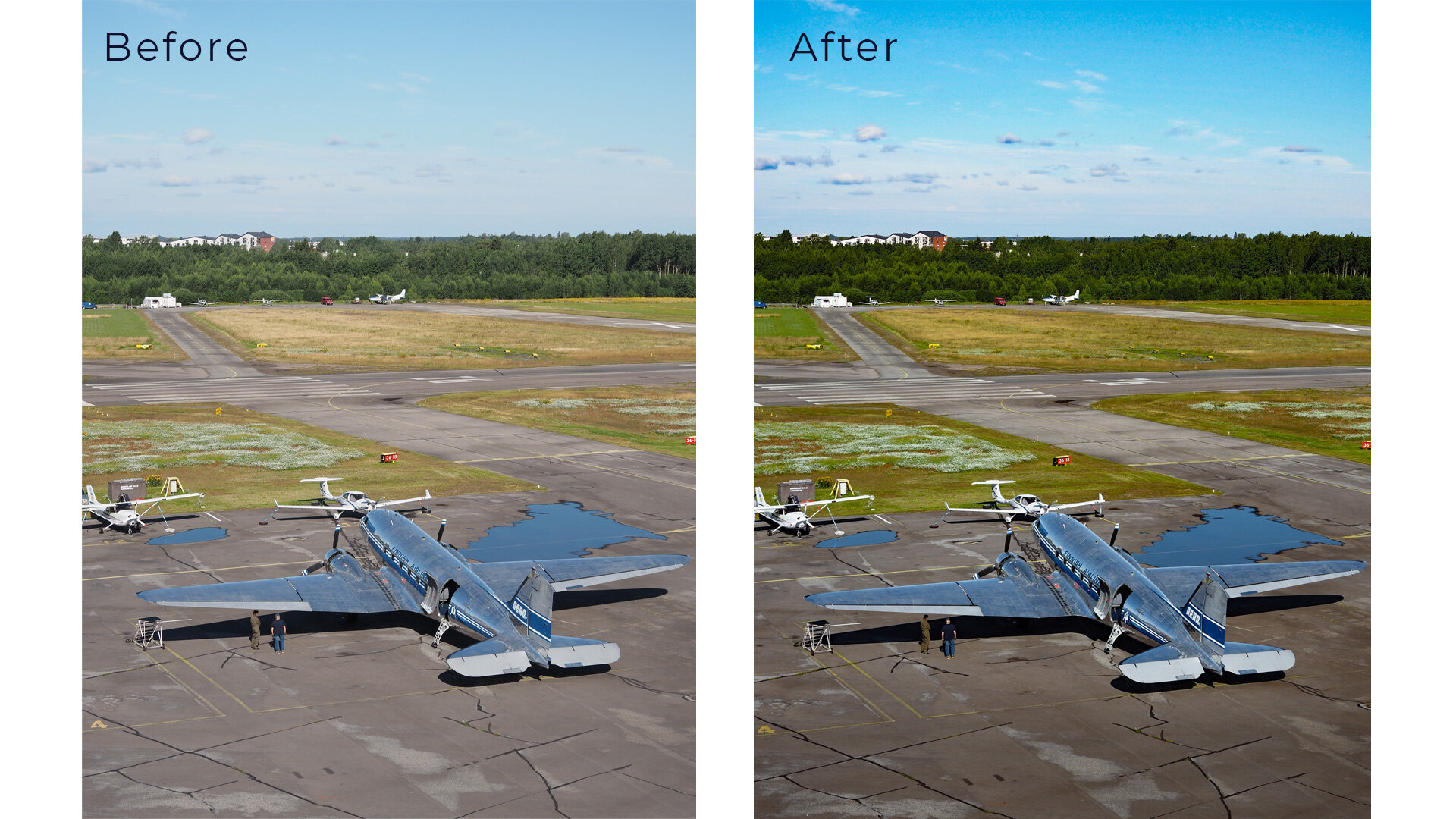
    DC-3 Air Veteran at Malmi Airport in Helsinki.
    DC-3 Air Veteran at Malmi Airport in Helsinki.


    Step 2: Start with global adjustments

    Start with global adjustments. Global adjustments are adjustments that are done to the whole image so that it will affect every pixel in the image.

    The first step is to adjust the white balance. Getting the white balance correct when making the photo is something to aim for. Especially if you shoot jpegs. Then it is almost a must. Raw images are also better what it comes to white balance. It can be correct easily. You can use the eyedropper tool to click something neutral like white or middle grey to correct the wrong white balance. It can also be adjusted whit the slider.

    The next step is to fine-tune the exposure. If you have used ETTR (Exposure to the Right) then you most likely need to lower the exposure. This way a bit washed out look will go away and the image looks more natural. How much to lower? That is up to you and it depends on your style like everything in editing does.

    The third step is adjusting the contrast. Adding contrast brings back the colors and sharpness. You can also use Clarify and Dehaze tools. Both of these tools also have an effect on contrast. But do not overdo it. It can ruin your images if done too much.

    The fourth step is to check the colors. If you think that the color is not the way you want them to be then adjust them to your likings. This one also is a matter of personal taste. Adding some saturation and vibrance can make the image better. Remember that sometimes it might even be better to lower the saturation and/or vibrance. If there are people in the photo look that skin tones are the way you want. If the skin tones are too red it usually does not look that good.

    The fifth step is to clone out dust spots and other things that might be distracting. Now we are on the borderline with manipulation. Cloning out dust spots is ok and should be done if there is dust on your sensor that shows in your images. Anything else is optional like cleaning up skin etc. But remember not to overdo the “cleaning” with the skin.

    Step 3: Local Adjustments.

    Local adjustments mean that you only affect a part of the image. The cloning that was mentioned in the previous step can be also considered to be a local adjustment. Adjustments are about the same as in global adjustments and also the tools are pretty much the same. Typical adjustments are exposure corrections in different parts of the image. You might want to lower/increase the highlights or shadows.

    Principals of editing

    What I mean by this is the things that we should consider. The main to understand how people look at images. What do they see first?

    People see the bright areas first and then the rest. That is just the way our eyes work. Try to have your subject in the brightest area of the image. This can be emphasized in editing. Increase the exposure on your subject or lower the exposure around your subject. Usually, the latter thing is better – lower the exposure around your subject. This will give more attention to your subject.

    The second principle is not to over-edit your images. Try to keep the editing so that the image looks natural. But of course, that also depends on your personal style.

    What Image Editing Software to use?

    The short answer is the one you are most familiar with. I personally use Lightroom as my main editing software. I have used it so many years that I am used to it. But I also use other software like Photoshop, Luminar 4.3, Aurora HDR, and Topaz DeNoise. They all work as plug-ins for Lightroom. Yes, Photoshop is also a plug-in for men. Very seldom do I open images straight in Photoshop. All these plug-ins have a different purpose. Photoshop is used for composite images. That is when I want to merge several images for example. For HDR I use Aurora HDR. I think it is the best HDR software on the market right now. Luminar 4.3 is the software I use the least. It is good for landscapes. Topaz DeNoise AI is an excellent noise reduction software.

    Links might be affiliate links. Use promo code JPETERF to get 10% off on Luminar and Aurora HDR.

    (Disclaimer: the coupon code is valid at the time this blog post was written, but it might not work in the future if the affiliate deal is not available.)